
Video editing software allows users to transform raw footage into finished videos by cutting clips, arranging scenes, adding music and voiceovers, correcting colors, creating titles, applying transitions and exporting the final project for platforms such as YouTube, Instagram, TikTok and Facebook.
Modern video editors range from extremely simple applications for beginners to professional non-linear editing systems capable of handling color grading, visual effects, motion graphics and advanced audio production.
The good news is that you do not necessarily need an expensive subscription to start editing. Several excellent applications are available completely free, while others offer a free version alongside optional premium features.
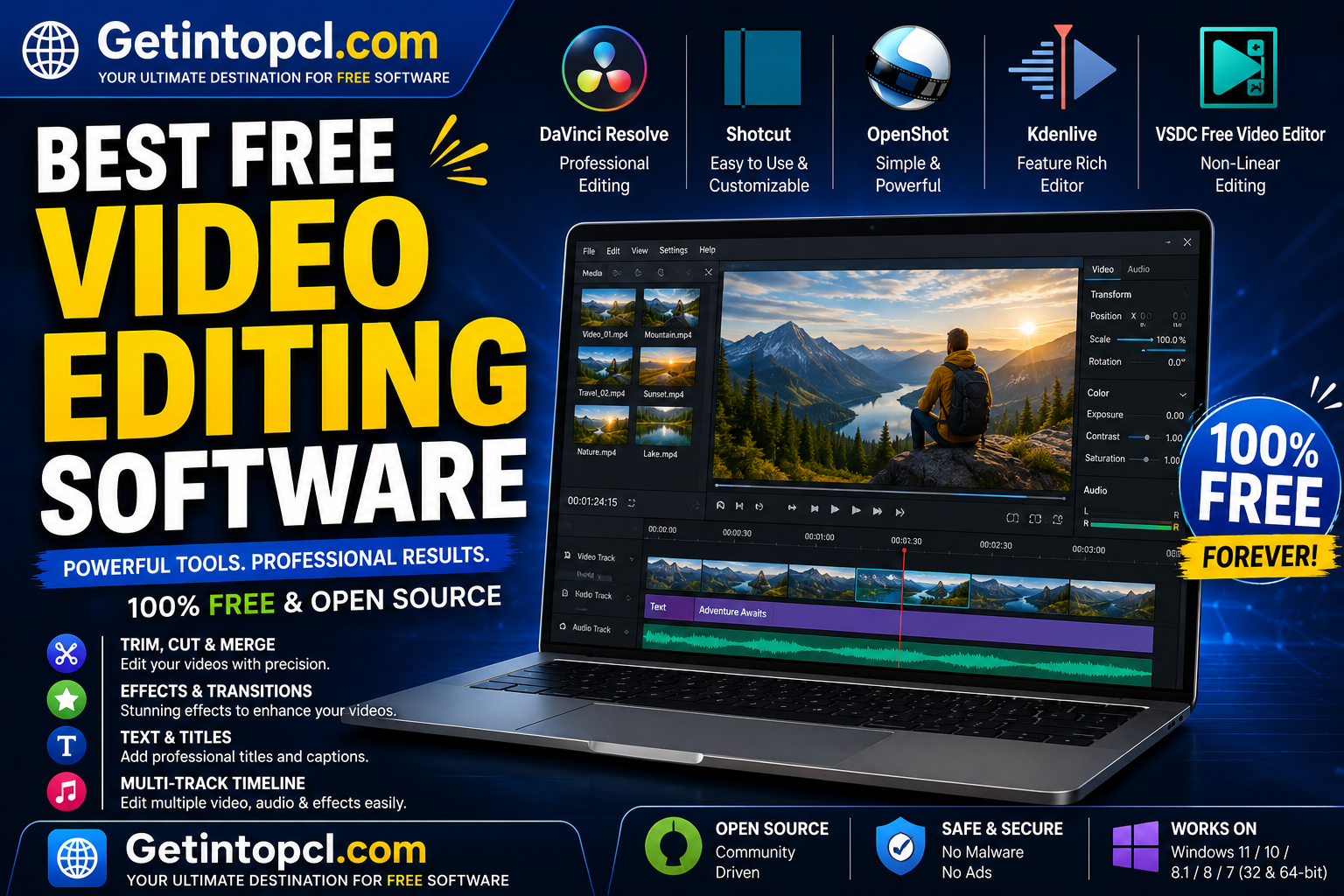
For this guide, the strongest choices include DaVinci Resolve, Shotcut, Kdenlive, OpenShot, Clipchamp, iMovie, Blender and CapCut. They are not identical: DaVinci Resolve is aimed at serious editing, OpenShot emphasizes simplicity, Shotcut and Kdenlive are excellent open-source choices, while Clipchamp and CapCut are particularly accessible to beginners and content creators.
1. DaVinci Resolve — Best Overall Free Video Editor
DaVinci Resolve, developed by Blackmagic Design, is arguably the most powerful free video editing application available to users who want professional-level tools without a subscription.
It combines video editing, color correction, visual effects, motion graphics and audio post-production in one application. Blackmagic Design currently lists DaVinci Resolve 21 for Windows, macOS and Linux, with a free version and a paid Studio edition.
Major Features
- Multi-track video editing
- Professional color grading
- Visual effects through Fusion
- Advanced audio through Fairlight
- Motion graphics
- Keyframes
- Green-screen tools
- HDR workflows
- Multi-user collaboration
- Professional export controls
- Support for numerous video formats
The free version is unusually capable. Blackmagic states that it supports virtually all 8-bit video formats up to 60 fps at resolutions as high as Ultra HD 3840×2160.
Free vs Studio
| Version | Price | Major Features |
|---|---|---|
| DaVinci Resolve | Free | Editing, color, Fusion, Fairlight, collaboration and HDR tools |
| DaVinci Resolve Studio 21 | $295 one-time | AI tools, additional effects, advanced noise reduction, stereoscopic 3D, additional HDR features and more |
Blackmagic currently lists DaVinci Resolve Studio 21 at $295, making it a one-time purchase rather than a subscription.
Limitations
The biggest drawback is hardware demand. Resolve can be demanding, especially with 4K footage, complex effects and noise reduction.
Best for: YouTubers, filmmakers, serious hobbyists, professionals and anyone who wants to learn professional editing.
2. Shotcut — Best Open-Source Video Editor
Shotcut is a free, open-source, cross-platform video editor. It is developed as an independent open-source project and supports Windows, macOS and Linux.
Shotcut provides a traditional timeline-based editing workflow while remaining considerably lighter and less intimidating than some professional editors.
Major Features
- Multi-track timeline
- Cutting and trimming
- Filters
- Transitions
- Audio editing
- Keyframes
- Color correction
- Chroma key
- Proxy editing
- Hardware acceleration
- Wide format support
- 4K editing
The current Shotcut release page lists version 26.4.30. Windows 10/11 support requires at least Windows 10 build 1809, while macOS 12–26 and supported 64-bit Linux systems are also covered.
System Requirements
Shotcut’s official minimum requirements include:
- Windows: 64-bit Windows 10 build 1809 or later through Windows 11
- macOS: macOS 12–26
- Linux: 64-bit Linux with glibc 2.35 or later
- CPU: 2 GHz core for SD, 4 cores for HD and 8 cores for 4K
- RAM: 4 GB for SD, 8 GB for HD and 16 GB for 4K
- Graphics: OpenGL 2.0-compatible GPU on Linux and Direct3D 11 on Windows
- Storage: A hard drive or other storage is required; more is better for video projects
- Internet: Not required for activation, subscriptions or usage analytics.
Shotcut recommends using proxy editing and preview scaling on computers near the lower end of these specifications.
Price
Completely free and open source.
Best for: Users who want a powerful open-source editor without subscriptions.
3. Kdenlive — Best Free Editor for Linux
Kdenlive is another free and open-source video editor and is particularly popular among Linux users. It is developed as part of the KDE ecosystem.
It provides a flexible timeline, multi-track editing, effects, transitions, audio tools and proxy workflows.
Major Features
- Multi-track editing
- Proxy editing
- Audio mixing
- Color correction
- Effects
- Transitions
- Keyframes
- Subtitle tools
- Title creation
- Project templates
- Hardware acceleration options
System Requirements
The current Kdenlive documentation lists:
- Windows: 64-bit Windows 10 version 1809 or newer
- macOS: macOS 13 Ventura or newer on Apple Silicon
- Linux: 64-bit Linux
- CPU: At least one 2 GHz core for SD, 4 cores for HD and 8 cores for 4K
- RAM/storage: Requirements vary with project complexity and media.
Kdenlive is therefore a particularly attractive option for Linux users who want a full-featured desktop editor.
Price
Free and open source.
Best for: Linux users, open-source enthusiasts and editors who want a powerful traditional timeline.
4. OpenShot — Best Free Video Editor for Beginners
OpenShot is designed to make video editing accessible to beginners while still providing useful editing functionality.
It supports Windows, macOS and Linux and offers a relatively straightforward interface.
Major Features
- Drag-and-drop editing
- Unlimited tracks
- Trimming
- Transitions
- Titles
- Animation
- Keyframes
- Slow motion
- Audio editing
- Chroma key
- 3D animated titles
- Hardware acceleration
OpenShot is licensed under the GNU General Public License and is completely free software.
System Requirements
OpenShot’s published minimum specifications include:
- OS: 64-bit Windows, macOS/OS X, Linux or ChromeOS
- CPU: 2 cores minimum; 6+ cores recommended
- Threads: 4 minimum; 6+ recommended
- CPU clock: 2.7 GHz minimum; 3.4+ GHz recommended
- RAM: 4 GB minimum; 16+ GB recommended
- Storage: 1 GB minimum; 50+ GB recommended for media
- SSD: Optional, with additional space recommended when using disk caching.
Price
Completely free and open source.
Best for: Beginners, students and users who want a simple desktop editor.
5. Clipchamp — Best Free Editor for Beginners on Windows
Clipchamp is Microsoft’s video editing application. It is particularly convenient for Windows users because it is integrated into Windows 11 and can also be used through supported web browsers.
Microsoft describes the free version as a video editor that does not require payment or downloads when used online.
Major Features
- Trim and cut
- Crop and resize
- Transitions
- Text and titles
- Screen recording
- Webcam recording
- Voice recording
- Templates
- Stock media
- AI-powered editing features
- Subtitles
- Social-media-oriented aspect ratios
Free vs Premium
| Feature | Free | Premium |
|---|---|---|
| Basic editing | Yes | Yes |
| Screen/camera recording | Yes | Yes |
| AI editing tools | Yes | Yes |
| Watermark-free exports | Yes | Yes |
| Maximum free export | 1080p | 4K |
| Free stock assets | Yes | Yes |
| Premium stock assets | No | Yes |
| Premium effects | No | Yes |
| Brand kit | No | Yes |
Microsoft currently states that the free plan allows unlimited video creation and exports up to 1080p HD without watermarks. Premium/Microsoft 365 access adds 4K exports and premium stock assets and effects.
Compatibility
Clipchamp works through supported browsers, while its Windows application supports Windows 10 and Windows 11. Microsoft requires a Microsoft account for the personal version.
Best for: Beginners, Windows users, YouTube Shorts and social-media videos.
6. iMovie — Best Free Video Editor for Mac
iMovie is Apple’s free video editor for compatible Mac devices. It focuses on ease of use rather than professional post-production complexity.
For Mac users who want to quickly create family videos, travel videos, YouTube content or social-media clips, iMovie remains a convenient choice.
Major Features
- Timeline editing
- Templates
- Titles
- Transitions
- Music
- Sound effects
- Green screen
- Picture-in-picture
- Slow motion
- Video stabilization
- Color controls
- 4K editing
- YouTube export
Apple’s current Mac App Store listing says iMovie supports editing up to 4K, and the current Mac version requires macOS 15.6 or later, 4 GB memory and 3.5 GB available storage.
Price
Free.
There is no separate premium version of iMovie.
Limitation
iMovie is designed for Apple platforms and does not provide a Windows or Linux desktop version.
Best for: Mac beginners, students, casual editors and Apple users who want a simple free editor.
7. Blender — Best for Video Editing Plus 3D
Blender is best known as a free and open-source 3D creation suite, but it also contains a Video Sequence Editor (VSE) for video editing.
It can therefore be an interesting option for creators who want to combine conventional video editing with 3D animation, compositing, visual effects and motion graphics.
Major Features
- Video sequence editing
- Cutting
- Audio editing
- Compositing
- Animation
- 3D graphics
- Visual effects
- Motion graphics
- Color-related workflows
- Extensive scripting and customization
System Requirements
Blender officially lists:
Windows
- Minimum: Windows 8.1 64-bit
- CPU: 4 cores with SSE4.2
- RAM: 8 GB
- GPU: 2 GB VRAM with OpenGL 4.3
- Recommended: Windows 10/11, 8-core CPU, 32 GB RAM and 8 GB VRAM
macOS
- Minimum: macOS 11.2
- CPU: Apple Silicon or Intel
- RAM: 8 GB
- Recommended: macOS 14, Apple Silicon and 32 GB RAM
Linux
- 64-bit Linux with glibc 2.28+
- 4-core CPU minimum
- 8 GB RAM minimum
- 2 GB VRAM/OpenGL 4.3 minimum
- 32 GB RAM and 8 GB VRAM recommended.
Price
Completely free and open source.
Best for: Advanced creators who want video editing alongside animation and 3D work.
8. CapCut — Best for Social-Media Video Editing
CapCut Desktop, developed by ByteDance, is designed heavily around modern content creation and social-media workflows.
It combines conventional editing with templates, effects, captions, keyframes, color controls and AI-powered features.
Major Features
- Timeline editing
- Automatic captions
- Text overlays
- Effects
- Filters
- Keyframes
- Curves
- Color controls
- AI tools
- Templates
- Aspect-ratio presets
- Social-media workflows
CapCut’s official desktop page describes it as a free download for Mac and PC and highlights features such as keyframes, graphs, color wheels, automatic captions and AI tools.
Compatibility
The current official page lists:
- Windows: Windows 7 or later, with Windows 10 recommended
- macOS: macOS 10.14 or later
Actual performance depends heavily on the resolution, codec, effects and hardware used.
Price
Freemium.
The application can be downloaded free, but some advanced features and content may require paid access.
Best for: TikTok, Shorts, Instagram Reels and creators who want fast editing with templates and AI-assisted tools.
Best Free Video Editing Software Compared
| Software | Best For | Free | Premium | Windows | macOS | Linux |
|---|---|---|---|---|---|---|
| DaVinci Resolve | Professional editing | ✓ | ✓ | ✓ | ✓ | ✓ |
| Shotcut | Open-source editing | ✓ | No | ✓ | ✓ | ✓ |
| Kdenlive | Linux/open source | ✓ | No | ✓ | ✓ | ✓ |
| OpenShot | Beginners | ✓ | No | ✓ | ✓ | ✓ |
| Clipchamp | Simple Windows editing | ✓ | ✓ | ✓ | Browser | — |
| iMovie | Mac beginners | ✓ | No | — | ✓ | — |
| Blender | Video + 3D | ✓ | No | ✓ | ✓ | ✓ |
| CapCut | Social media | ✓ | ✓ | ✓ | ✓ | — |
System Requirements: What PC Do You Need?
Video editing is significantly more demanding than ordinary office productivity. The required hardware depends on video resolution, codec, frame rate, effects and software.
Minimum practical considerations
- Operating system: Use a currently supported version of Windows, macOS or Linux compatible with your chosen editor.
- Processor: A modern multi-core CPU is strongly recommended.
- RAM: 8 GB is a reasonable starting point for basic HD editing; 16 GB or more is preferable for heavier projects.
- Storage: An SSD is strongly recommended, particularly for project files and cache.
- Graphics: Integrated graphics may handle basic editing, but a dedicated GPU can significantly help with demanding workloads and applications such as DaVinci Resolve and Blender.
- Internet: Offline editors generally do not require constant internet access, although downloads, cloud features, stock media, updates and some AI functions may require connectivity.
- Video storage: Your actual footage will usually consume far more space than the editor itself.
Do not assume that meeting an application’s minimum requirements means smooth 4K editing. Minimum specifications generally indicate that the software can run; they do not guarantee comfortable playback or fast rendering.
Which Free Video Editor Should You Choose?
For professional editing
Choose DaVinci Resolve. Its free version includes a remarkably complete editing, color, effects and audio workflow.
For YouTube
DaVinci Resolve is the strongest long-term choice for serious YouTube production. Clipchamp or CapCut may be easier if your videos are relatively simple.
For beginners
OpenShot and Clipchamp are easier starting points.
For low-end PCs
Consider Shotcut or OpenShot, while reducing preview resolution and using proxy workflows when available. Video resolution and codec matter as much as raw computer specifications.
For Linux
Kdenlive and Shotcut are excellent choices.
For Mac users
iMovie is ideal for straightforward editing. More advanced users should consider DaVinci Resolve.
For social media
CapCut and Clipchamp are convenient for Shorts, Reels and other short-form content.
For video + 3D
Choose Blender if your workflow involves animation, 3D models, compositing or visual effects.
Advantages of Free Video Editing Software
1. No expensive subscription required
You can begin editing without committing to expensive monthly software plans.
2. Professional options exist
DaVinci Resolve demonstrates that free software can provide sophisticated professional workflows.
3. Open-source choices
Shotcut, Kdenlive, OpenShot and Blender give users open-source alternatives.
4. Suitable for YouTube
Many free editors can produce high-quality content suitable for YouTube and social media.
5. Multiple platforms
There are excellent free options for Windows, macOS and Linux.
Limitations of Free Video Editors
Free does not always mean unlimited.
Potential limitations include:
- Advanced AI features may require payment.
- Some applications require more powerful hardware.
- Cloud-based editors depend more heavily on internet access.
- Premium stock media may be locked.
- Advanced professional effects may be restricted.
- Some editors have steeper learning curves.
- Complex 4K projects can require substantial RAM, GPU power and storage.
- Older computers may struggle with modern codecs and high-resolution footage.
For example, Clipchamp’s free plan supports watermark-free 1080p exports, but 4K export and premium stock features require premium access.
Where to Safely Download Video Editing Software
Always download video editors from their official developer websites or official app stores. Avoid cracked versions, unauthorized repacks and suspicious download sites.
Official sources include:
- DaVinci Resolve — Blackmagic Design
- Shotcut official download
- Kdenlive official download
- OpenShot official download
- Microsoft Clipchamp
- Apple iMovie
- Blender official download
- CapCut Desktop
Shotcut specifically warns that its malware/spyware/adware guarantee applies when users download from its own website.
Frequently Asked Questions
1. What is the best free video editing software?
DaVinci Resolve is the best overall choice for users who want professional editing, color grading, effects and audio tools without paying a subscription.
2. Which free video editor is best for YouTube?
DaVinci Resolve is an excellent long-term choice for YouTubers. Beginners may prefer Clipchamp or CapCut for simpler videos.
3. Is DaVinci Resolve really free?
Yes. DaVinci Resolve 21 has a free version. Blackmagic also sells DaVinci Resolve Studio 21 for $295 as a one-time purchase.
4. Does DaVinci Resolve put a watermark on videos?
The free version is not marketed as a watermark-based trial. Its main restrictions are feature and format related rather than forcing a watermark onto ordinary exports.
5. Is Shotcut completely free?
Yes. Shotcut is free and open source and does not require a subscription.
6. Is Clipchamp free without a watermark?
Yes. Microsoft currently states that the free plan supports watermark-free exports up to 1080p.
7. How much RAM do I need for video editing?
For basic HD editing, 8 GB RAM can be a starting point, while 16 GB or more is preferable for more demanding projects. Professional 4K workflows may benefit from substantially more memory.
8. Can I edit 4K video with free software?
Yes. DaVinci Resolve’s free version supports up to Ultra HD 3840×2160 at up to 60 fps for supported 8-bit formats. iMovie also supports 4K on compatible Macs.
9. Which free video editor is best for Linux?
Kdenlive and Shotcut are two of the strongest choices. DaVinci Resolve also has a Linux version for users with suitable hardware and supported configurations.
10. Is iMovie available for Windows?
No. iMovie is an Apple application for compatible Apple devices. The current Mac version requires macOS 15.6 or later.
11. Is free video editing software good enough for professional work?
Yes, depending on the software and project. DaVinci Resolve’s free version provides a professional-grade workflow, although Studio adds advanced features and formats.
12. Where should I download free video editing software?
Download it directly from the developer’s official website or an official app store. This reduces the risk of downloading modified, outdated or malicious installers.
Conclusion
The best free video editing software in 2026 depends primarily on your editing goals and computer.
DaVinci Resolve is the strongest overall recommendation for serious editing and YouTube production. Shotcut and Kdenlive are excellent open-source alternatives, while OpenShot is easier for beginners. Clipchamp is convenient for Windows users and simple social-media projects, iMovie remains an excellent Mac option, and CapCut is particularly attractive for short-form content.
If you are starting a YouTube channel and want software that you can continue using as your skills improve, DaVinci Resolve is the best place to start. If your computer cannot comfortably handle it, try Shotcut or OpenShot and use lower-resolution previews or proxy media for demanding projects.