
PDF, or Portable Document Format, is one of the most widely used formats for sharing documents. PDFs preserve text, images, fonts and page layouts, making them useful for everything from school assignments and business contracts to invoices, manuals, research papers and government forms.
PDF software allows users to do much more than simply open these files. Depending on the application, you can read, annotate, highlight, sign, fill forms, merge, split, compress, convert, OCR and edit PDF documents.
However, there is an important distinction between a PDF reader and a PDF editor. A reader is primarily designed to view, print and annotate documents, while a full editor can modify existing text and images, reorganize pages, convert files and perform more advanced operations.
Fortunately, several capable PDF applications are available for free in 2026. Some are completely free and open source, while others use a freemium model with advanced features reserved for paid editions.
This guide compares PDFgear, PDF24 Creator, Adobe Acrobat Reader, PDF-XChange Editor, Foxit PDF Reader, LibreOffice Draw, Okular and SumatraPDF to help you choose the right free PDF software for your needs.
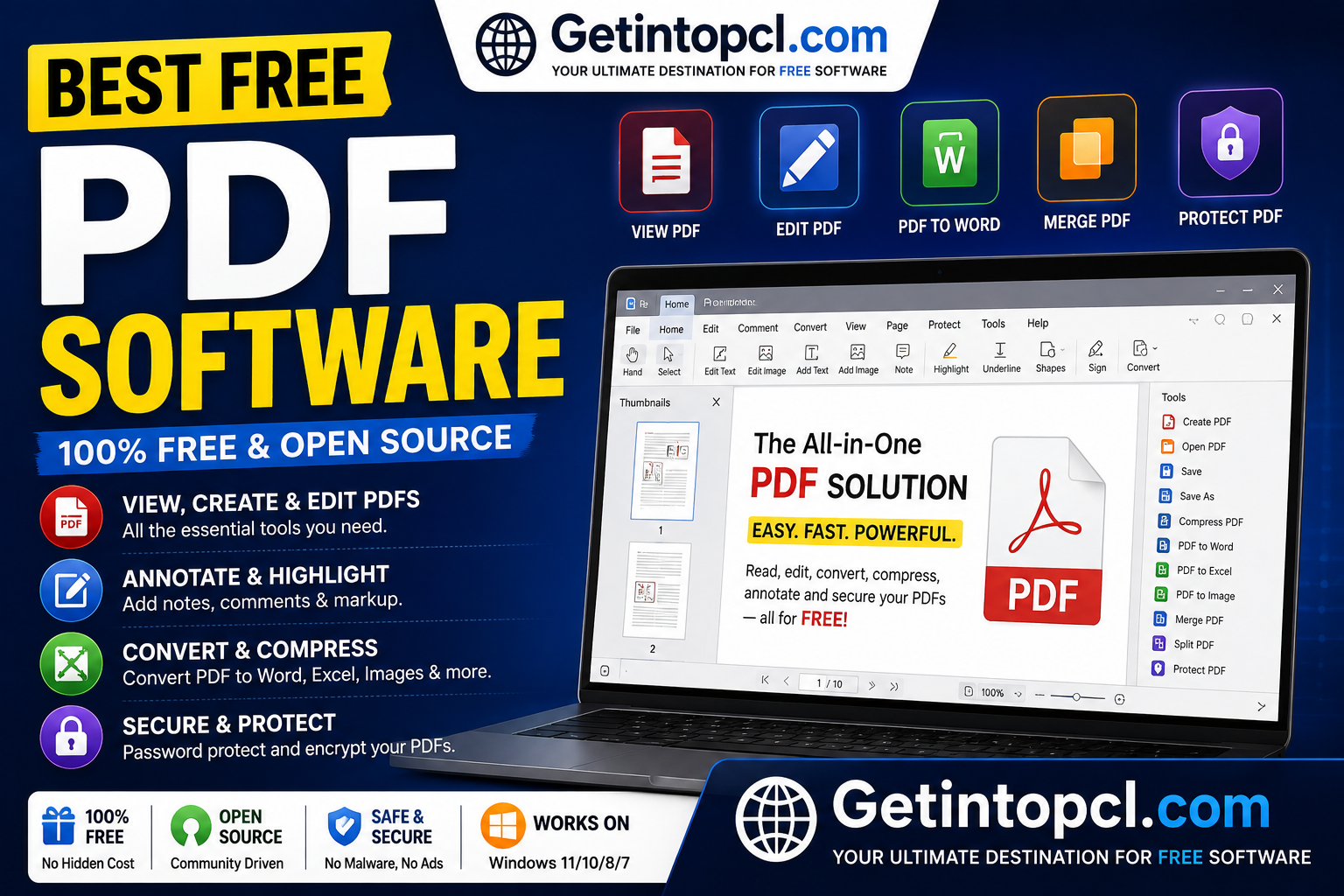
1. PDFgear — Best Overall Free PDF Software
PDFgear is a PDF management and editing application designed for Windows and macOS, with online tools also available through a browser.
It stands out because many functions that are traditionally associated with premium PDF editors—including editing text, organizing pages, converting files, OCR and signing—are available without a subscription.
According to its official website, PDFgear provides PDF editing, annotation, conversion, OCR, page organization, form filling and AI-assisted PDF features. It also states that the desktop software is completely free, without watermarks or premium versions.
Major Features
- Edit existing PDF text
- Edit images
- Add annotations
- Highlight and underline
- Merge PDFs
- Split PDFs
- Reorder pages
- Rotate pages
- Convert PDF to Word, Excel and other formats
- OCR scanned documents
- Fill forms
- Sign PDFs
- Compress PDFs
- AI-powered PDF assistance
- Batch processing
One particularly useful feature is OCR, which can recognize text in scanned documents and make it searchable or editable.
Compatibility
- Windows: Desktop application available
- macOS: Desktop application available
- Linux: Browser-based version available
- Android/iOS: Mobile applications available
PDFgear’s online editor works through browsers on Windows, macOS and Linux.
Price
Completely free, according to the developer.
There is no conventional free-versus-premium desktop edition at present.
Best for: Users who want a genuinely free PDF editor rather than a reader with most editing functions locked behind a subscription.
2. PDF24 Creator — Best Free PDF Toolkit for Windows
PDF24 Creator is a Windows PDF utility developed by Geek Software GmbH. Rather than concentrating on one feature, it provides a large collection of PDF tools in a single desktop package.
You can merge and split PDFs, rearrange pages, create PDFs, convert documents, compress files, use OCR, add passwords and perform many other operations.
The official site says PDF24 Creator is completely free, has no usage restrictions and can also be used commercially.
Major Features
- PDF reader
- PDF creation
- PDF printer
- Merge PDFs
- Split PDFs
- Extract pages
- Rearrange pages
- Rotate pages
- Convert documents
- Compress PDFs
- OCR
- Add watermarks
- Password protection
- Digital signatures
- Batch processing
One major advantage is its offline design. PDF24 says files processed by the Creator remain on the user’s computer rather than being uploaded to the internet.
Compatibility
The current desktop version supports:
- Windows 10
- Windows 11
PDF24 Creator does not currently provide a native Mac or Linux desktop application. Mac and Linux users can instead use PDF24’s browser-based tools.
Price
Completely free, including commercial use.
System Requirements
PDF24’s current download page does not publish a detailed processor/RAM minimum specification. Therefore, it would be inappropriate to invent one. The official download page identifies Windows 10 and Windows 11 as supported desktop platforms.
Best for: Windows users who want a large collection of PDF utilities in one free application.
3. Adobe Acrobat Reader — Best Free PDF Reader
Adobe Acrobat Reader is developed by Adobe, the company that originally created the PDF format.
It remains one of the best-known PDF applications and is particularly strong for reading, printing, annotating, filling forms and signing documents.
Adobe describes Acrobat Reader as a free application for viewing, printing, signing and annotating PDFs.
Major Features
- PDF viewing
- Printing
- Search
- Highlighting
- Comments
- Annotations
- Form filling
- Fill & Sign
- Digital signatures
- Sharing
- Cloud document access
Acrobat Reader can also fill flat forms by allowing users to add text and symbols even when the original PDF does not contain interactive fields.
Free vs Paid
| Feature | Acrobat Reader | Acrobat Premium/Pro |
|---|---|---|
| View PDFs | ✓ | ✓ |
| ✓ | ✓ | |
| Comments | ✓ | ✓ |
| Fill forms | ✓ | ✓ |
| Sign PDFs | ✓ | ✓ |
| Edit existing PDF text | Limited/paid | ✓ |
| Convert PDFs | Limited/paid | ✓ |
| Advanced page organization | Limited/paid | ✓ |
| Advanced PDF protection | Limited/paid | ✓ |
| Advanced AI features | Limited/paid | ✓ |
The exact premium offerings vary by platform and region.
System Requirements
Adobe’s current requirements list, among other specifications:
- Windows 11 64-bit
- Windows 10 version 1809 or later
- Processor: Intel or AMD 1.5 GHz or faster
- RAM: 2 GB
- Storage: 4.5 GB
- Display: 1024×768 minimum
Adobe also publishes separate requirements for macOS and server environments.
Price
Freemium.
The basic Reader application is free. Advanced editing and document-management features require paid Acrobat plans.
Best for: Users who primarily need a reliable PDF reader, form filler, annotation tool and signing application.
4. PDF-XChange Editor — Best Free PDF Editor for Windows Power Users
PDF-XChange Editor, developed by PDF-XChange, is a Windows PDF viewer and editor with an unusually generous free feature set.
The developer states that more than 70% of the features in PDF-XChange Editor do not require a license. Features that require licensing can add watermarks when used without a license.
Major Features
- PDF viewing
- Text editing
- Annotations
- Highlighting
- OCR
- Digital signatures
- Forms
- Page manipulation
- Document creation
- PDF printing
- Multiple document tabs
- Customizable interface
Free vs Paid
| Version | Cost | Main Characteristics |
|---|---|---|
| PDF-XChange Editor Free | $0 | More than 70% of features free |
| Licensed Editor | Paid | Unlocks licensed features without watermarks |
| Editor Plus | Paid | Additional form-creation/editing capabilities |
The free application is not simply a time-limited trial. PDF-XChange explicitly says its applications have no time limit, although licensed features require a purchase.
Compatibility
The current release supports Windows 10 and later. The developer strongly recommends using supported, fully updated Windows versions.
There is no native macOS or Linux version of PDF-XChange Editor.
Price
Freemium/perpetual-license model.
Important Limitation
Some features used without a license may place watermarks on output.
Best for: Windows power users who want advanced PDF editing and OCR without immediately paying for an editor.
5. Foxit PDF Reader — Best Cross-Platform Free Reader
Foxit PDF Reader is developed by Foxit and focuses on fast PDF viewing, annotation, form filling, signing and collaboration.
Foxit describes its Reader as a free PDF viewer that supports reading, annotating and collaboration.
Major Features
- PDF viewing
- Search
- Annotations
- Comments
- Highlighting
- Form filling
- Signing
- Cloud storage integration
- Collaboration
- Document sharing
- Security controls
Foxit Reader supports Windows and macOS, along with mobile platforms and web access.
System Requirements
For the Mac version documented by Foxit, the requirements include:
- macOS: 10.15 through 14 in the cited version
- Processor: Intel or Apple Silicon
- RAM: 1 GB
- Storage: 1.2 GB
- Display: 1024×768
Because supported versions change, users should check Foxit’s current requirements before installing on an older Mac.
Price
Free reader + paid PDF Editor.
The free Reader focuses primarily on viewing, annotation, forms and signing, while advanced PDF editing belongs to Foxit’s paid Editor products.
Best for: Users who want a fast alternative to Adobe Reader with strong annotation and collaboration features.
6. LibreOffice Draw — Best Open-Source Option for Basic PDF Editing
LibreOffice Draw is part of the LibreOffice office suite. Although it is primarily a vector graphics and drawing application, it can open and modify many PDF documents.
It can be useful for making basic changes to PDFs without purchasing a dedicated PDF editor.
Major Features
- Open PDF documents
- Edit certain PDF text and objects
- Move elements
- Add text
- Add shapes
- Export to PDF
- Work offline
- Open-source software
Important Limitation
LibreOffice Draw is not a replacement for a professional PDF editor. Complex PDFs, interactive forms, unusual layouts and sophisticated document structures may not survive editing perfectly.
It is best used for relatively simple PDFs where you need to make basic changes.
Compatibility
LibreOffice supports:
- Windows
- macOS
- Linux
The exact supported operating-system versions depend on the current LibreOffice release.
Price
Completely free and open source.
Best for: Users who already have LibreOffice or want an open-source way to make basic changes to PDF documents.
7. Okular — Best Free PDF Reader for Linux
Okular is a free, open-source document viewer developed as part of the KDE ecosystem.
It supports PDFs along with other document formats and is especially attractive to Linux users.
Major Features
- PDF viewing
- Text selection
- Search
- Annotations
- Highlighting
- Digital signatures
- Bookmarks
- Document navigation
- Presentation mode
- Multiple document formats
Compatibility
Okular is particularly associated with Linux and KDE but is also available on other platforms, including Windows.
It is a reader rather than a full PDF editing application.
Price
Free and open source.
Best for
Linux users, students, researchers and anyone who primarily needs to read and annotate PDFs.
8. SumatraPDF — Best Lightweight PDF Reader for Windows
SumatraPDF is a free, open-source and lightweight document reader for Windows.
Its major advantage is simplicity. It does not attempt to be a massive PDF editing suite. Instead, it focuses on opening documents quickly and using relatively few resources.
It is useful for:
- Reading PDFs
- Searching documents
- Viewing comics and e-books
- Opening multiple document formats
- Printing
- Basic navigation
Price
Completely free and open source.
Compatibility
SumatraPDF is primarily a Windows application.
Limitation
It is not intended to compete with PDFgear, PDF-XChange or Adobe Acrobat when you need advanced PDF editing.
Best for: Users with older or low-end Windows PCs who primarily need a fast PDF reader.
Comparison of the Best Free PDF Software
| Software | Main Purpose | Free | Paid Version | Windows | macOS | Linux |
|---|---|---|---|---|---|---|
| PDFgear | Full PDF editing | ✓ | No | ✓ | ✓ | Web |
| PDF24 Creator | PDF toolkit | ✓ | No | ✓ | Web | Web |
| Adobe Acrobat Reader | PDF reading | ✓ | ✓ | ✓ | ✓ | — |
| PDF-XChange Editor | Advanced editing | ✓ | ✓ | ✓ | — | — |
| Foxit PDF Reader | Reading & annotation | ✓ | ✓ | ✓ | ✓ | — |
| LibreOffice Draw | Basic PDF editing | ✓ | No | ✓ | ✓ | ✓ |
| Okular | PDF/document reading | ✓ | No | ✓ | —/Linux-focused | ✓ |
| SumatraPDF | Lightweight reading | ✓ | No | ✓ | — | — |
System Requirements
PDF applications are generally much less demanding than video editors or 3D software. However, requirements vary considerably.
Operating System
- Windows: Most major PDF applications support Windows 10 and Windows 11.
- macOS: PDFgear, Adobe Acrobat Reader and Foxit provide Mac support.
- Linux: Okular, LibreOffice and browser-based PDF tools are useful choices.
- Older operating systems: Support varies, so check the developer’s current requirements before installing.
Processor
A modern entry-level processor is sufficient for ordinary PDF reading. Advanced OCR and large-document processing may benefit from a faster CPU.
RAM
For basic PDF reading, 2–4 GB can be sufficient depending on the software and operating system. For modern multitasking, 8 GB or more is preferable.
Adobe Acrobat Reader, for example, currently lists 2 GB RAM for its Windows requirements.
Storage
PDF applications themselves generally require relatively little storage compared with video-editing software. Adobe currently lists 4.5 GB for its Windows Reader installation, while PDF24 does not publish a large minimum storage specification on its current download page.
Graphics
A dedicated GPU is normally unnecessary for ordinary PDF work.
Internet Connection
An internet connection may be required for:
- Software downloads
- Updates
- Cloud storage
- Online PDF tools
- AI functions
- Online conversions
Offline applications such as PDF24 Creator can process documents locally without uploading them.
Free vs Premium PDF Software
There are three major licensing models in this category.
Completely Free
These applications provide their main functionality without a subscription:
- PDFgear
- PDF24 Creator
- LibreOffice Draw
- Okular
- SumatraPDF
Freemium
These offer a useful free version but charge for advanced capabilities:
- Adobe Acrobat Reader
- PDF-XChange Editor
- Foxit PDF Reader
Subscription/Paid Professional Software
Premium PDF editors generally add features such as:
- Advanced PDF editing
- OCR
- Document conversion
- Redaction
- Advanced e-signatures
- Document comparison
- Advanced security
- AI tools
- Business collaboration
The best choice depends on whether you need to read PDFs or actually edit their existing content.
Advantages of Free PDF Software
1. Saves money
You can read, annotate, sign and often edit PDFs without paying a monthly subscription.
2. Many powerful options exist
Applications such as PDFgear and PDF24 provide considerably more functionality than basic PDF readers.
3. Cross-platform availability
Windows, macOS and Linux users all have free options.
4. Open-source choices
LibreOffice, Okular and SumatraPDF offer open-source alternatives.
5. Useful for students and businesses
Free PDF applications can handle assignments, reports, invoices, contracts, forms and research documents.
Limitations of Free PDF Software
Free PDF applications also have limitations.
- Some free readers do not edit existing text.
- Premium applications restrict advanced tools.
- Some free editors may add watermarks to certain operations.
- Complex PDFs may not edit cleanly.
- OCR accuracy depends on document quality and language.
- Online PDF tools require uploading documents to a server.
- Advanced business features often require paid plans.
For confidential documents, offline software can be preferable. PDF24 Creator, for example, explicitly processes files locally, while its online tools upload files to its servers for processing and subsequently delete them.
Which Free PDF Software Should You Choose?
For general PDF editing
PDFgear is one of the strongest choices because it combines editing, conversion, OCR, signing and page management in a free package.
For Windows users
PDF24 Creator is an excellent choice if you want a large collection of PDF tools and offline processing.
For simply reading PDFs
Adobe Acrobat Reader remains a dependable choice.
For advanced Windows PDF editing
Choose PDF-XChange Editor, particularly if OCR and advanced editing are important.
For Mac users
PDFgear, Adobe Acrobat Reader and Foxit PDF Reader are strong options.
For Linux users
Okular and LibreOffice Draw are useful desktop choices, while PDFgear and PDF24 also offer browser-based tools.
For low-end Windows PCs
SumatraPDF is an excellent choice if your main requirement is simply opening and reading PDF files.
Where to Safely Download PDF Software
Always download PDF applications from the official developer website or a legitimate app store. Avoid cracked Acrobat versions, modified PDF editors and unauthorized download sites.
Official sources include:
- Adobe Acrobat Reader — Official Adobe Reader download.
- PDFgear — Official PDFgear downloads.
- PDF24 Creator — Official PDF24 Creator download.
- PDF-XChange Editor — Official PDF-XChange download.
- Foxit PDF Reader — Official Foxit Reader download.
- LibreOffice — Official LibreOffice download.
- Okular — Official KDE Okular download.
- SumatraPDF — Official SumatraPDF download.
Frequently Asked Questions
1. What is the best free PDF software?
For the broadest free editing functionality, PDFgear is an excellent choice. PDF24 Creator is particularly strong for Windows users who need many PDF utilities, while Adobe Acrobat Reader is excellent for viewing and signing.
2. Is Adobe Acrobat Reader really free?
Yes. Acrobat Reader is free for viewing, printing, annotating, filling and signing PDFs. Advanced editing and conversion features are available through paid Acrobat products.
3. What is the best free PDF editor for Windows?
PDFgear and PDF-XChange Editor are two strong options. PDFgear provides many editing features free of charge, while PDF-XChange provides more than 70% of its Editor features without a license.
4. Is PDFgear completely free?
According to PDFgear, its desktop software is completely free, with no watermarks, premium versions or in-app purchases.
5. Is PDF24 Creator free?
Yes. PDF24 Creator is free without usage restrictions and can also be used by businesses and other organizations.
6. Does PDF24 work on Mac and Linux?
The desktop PDF24 Creator is Windows-only. Mac and Linux users can use PDF24’s online browser-based tools instead.
7. Can free PDF software edit existing text?
Some can. PDFgear provides direct PDF text editing, while PDF-XChange Editor also offers editing features. Basic readers such as Acrobat Reader are primarily intended for viewing, annotation, forms and signing rather than unrestricted editing.
8. How much RAM is needed for PDF software?
Requirements vary. Adobe Acrobat Reader currently lists 2 GB RAM for its Windows requirements. For general multitasking, however, 8 GB or more is a more comfortable amount of system memory.
9. Can I use free PDF software on Linux?
Yes. Okular and LibreOffice Draw are useful Linux desktop options. Browser-based services such as PDFgear and PDF24 also work on Linux.
10. Is free PDF software safe?
It can be, provided you download it from the official developer website or a trusted app store. Avoid pirated or modified PDF applications because they may contain malware or unwanted software.
11. Can I convert PDF to Word for free?
Yes. Several free tools support PDF conversion. PDFgear provides PDF-to-document conversion, while PDF24 also includes PDF conversion tools.
12. Should I use online or offline PDF software?
Use offline software for confidential documents when practical. Online tools are convenient but require your files to be uploaded for processing. PDF24’s desktop Creator, for example, keeps files on your computer.
Conclusion
The best free PDF software in 2026 depends on what you need to do.
For an all-purpose free editor, PDFgear is the strongest overall recommendation. PDF24 Creator is particularly impressive for Windows users who want a comprehensive collection of PDF utilities without paying or uploading documents. Adobe Acrobat Reader remains a dependable choice for reading, annotating, filling and signing PDFs.
For power users on Windows, PDF-XChange Editor offers an unusually large free feature set, although some licensed functions can add watermarks. Foxit PDF Reader is a strong cross-platform reader, while LibreOffice Draw and Okular provide useful open-source options.
If your computer is older and you only need to read PDFs, SumatraPDF is a simple and lightweight choice.
Overall recommendation: Start with PDFgear if you need editing, PDF24 Creator if you’re on Windows and want an all-in-one toolkit, and Adobe Acrobat Reader if your primary requirement is reliable PDF reading and signing.