
HandBrake Free Download for Windows 11 provides users with a powerful and flexible tool for converting and compressing video files. HandBrake is a free, open-source video transcoder that can convert video from many supported formats into modern codecs and container formats. It is designed for Windows, macOS, and Linux and can be used for tasks such as reducing video file sizes, converting recordings, preparing videos for different devices, and encoding content using modern video standards.
The HandBrake project is developed by the HandBrake Team and community contributors. The software is distributed under the GNU General Public License Version 2 (GPLv2), allowing users to download and use it without purchasing a commercial license.
The current official HandBrake download page lists HandBrake 1.11.2 as the current version. For Windows, the project provides separate downloads for Intel/AMD x64 systems and Qualcomm/ARM64 systems. Both installer and ZIP packages are available.
HandBrake is useful for everyday users, content creators, video editors, YouTubers, students, professionals, and anyone who needs to convert or compress video files. It provides presets that simplify encoding while also giving experienced users detailed control over video, audio, subtitles, filters, and other encoding settings.
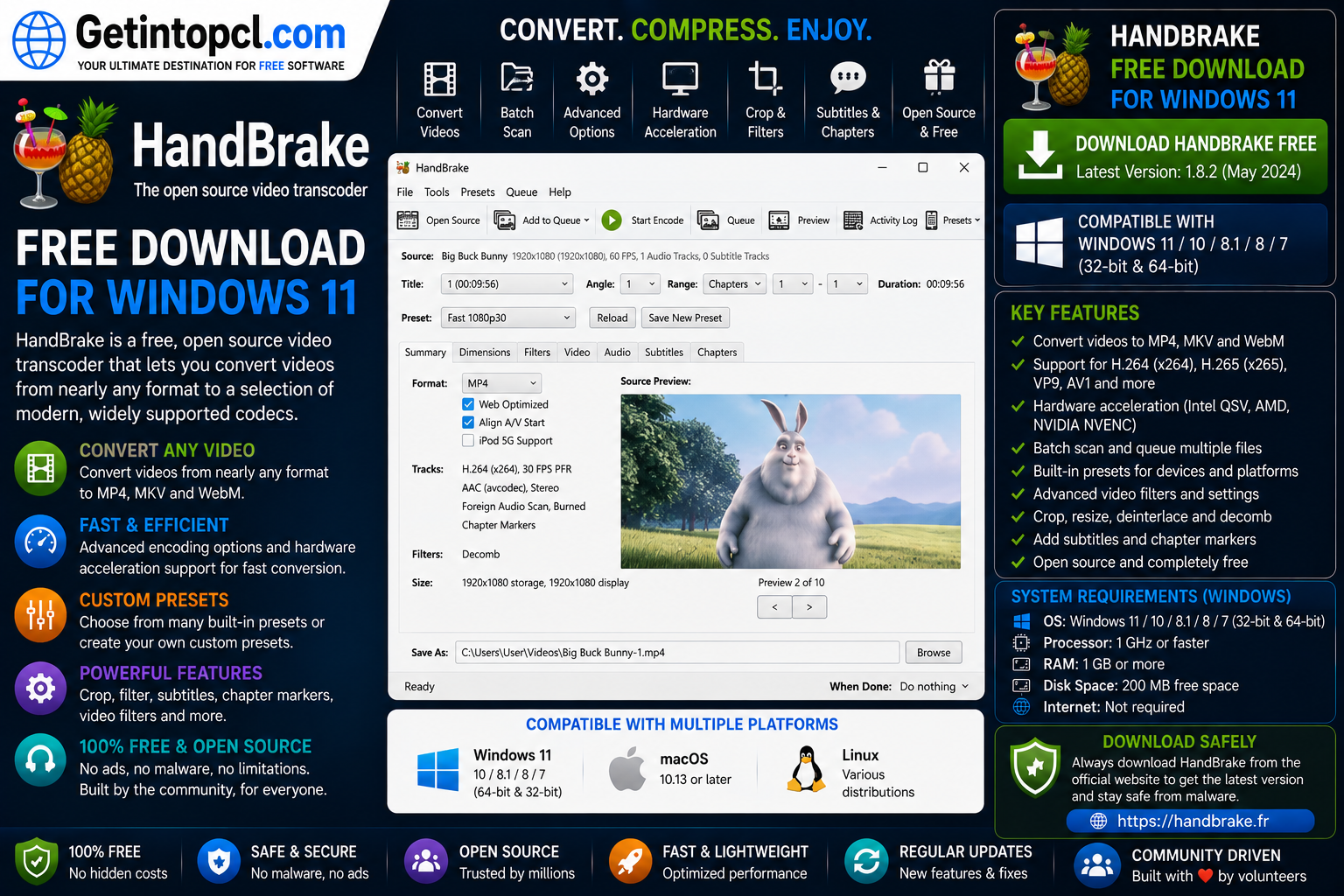
What Is HandBrake?
HandBrake is a video transcoder rather than a conventional video editor. Its primary purpose is to take an existing video source and encode it into another format or configuration.
For example, a large video file can be converted into a smaller H.264 or H.265 file. Users can also change resolution, frame rate, bitrate, audio tracks, subtitles, and other characteristics during the encoding process.
HandBrake supports many common source formats and can process video from files, DVDs, and other supported sources. It provides presets to make common conversion tasks easier while allowing advanced users to customize individual encoding parameters.
The application runs locally on the user’s computer. HandBrake does not require an online account to use, and the official project specifically warns users to obtain the application only from legitimate sources because fake downloads can contain unwanted software or malware.
Major Uses of HandBrake
HandBrake can be used for several important video-processing tasks.
Video conversion: Convert compatible video sources into formats and codecs suitable for different devices and platforms.
Video compression: Reduce the size of large video files while attempting to maintain acceptable visual quality.
Video encoding: Encode video using supported modern codecs such as H.264, H.265, and AV1 where supported by the selected configuration.
Resolution conversion: Resize videos to lower or different resolutions.
Device preparation: Use presets to prepare video for particular playback environments.
Archive preparation: Re-encode large video collections into more efficient formats.
Audio conversion: Adjust or convert audio tracks during video encoding.
Subtitle management: Add, pass through, or modify supported subtitle tracks.
Batch processing: Process multiple videos using HandBrake’s queue functionality.
Content creation: YouTubers and other creators can use HandBrake to compress recordings before uploading or sharing them.
Features
HandBrake includes a wide range of video-transcoding and processing features.
- Video conversion
- Video compression
- H.264 encoding
- H.265/HEVC encoding
- AV1 encoding where supported
- Multiple encoding presets
- Resolution scaling
- Frame-rate controls
- Bitrate controls
- Constant-quality encoding
- Audio track selection
- Audio encoding
- Subtitle support
- Chapter support
- Video filters
- Deinterlacing
- Cropping
- Hardware-accelerated encoding
- Intel Quick Sync support
- NVIDIA NVENC support
- AMD hardware encoding support
- Apple VideoToolbox support
- Queue-based encoding
- Batch processing
- Preview functionality
- Windows x64 support
- Windows ARM64 support
- macOS support
- Linux support
- Command-line interface
- Open-source licensing
Hardware encoders can accelerate supported encoding workloads. HandBrake’s documentation specifically provides information for AMD VCE, Apple VideoToolbox, Intel Quick Sync Video, and NVIDIA NVENC.
Hardware acceleration does not mean every codec, filter, or encoding option will automatically run on the GPU. Actual performance depends on the processor, graphics hardware, drivers, selected encoder, source material, and encoding settings.
HandBrake Video Conversion
Video conversion is one of HandBrake’s primary functions.
A user can load a compatible video source, choose a preset, select an output location, and start encoding. The software then creates a new video according to the selected settings.
This is useful when a video is stored in an inefficient format or when a particular device requires a different codec or container.
HandBrake also provides detailed settings for experienced users. Instead of relying entirely on presets, users can manually adjust video encoders, quality levels, frame rates, dimensions, audio tracks, subtitles, filters, and other options.
HandBrake Video Compression
HandBrake is also widely used for video compression.
Modern video codecs can significantly reduce file sizes compared with older encoding configurations while maintaining good visual quality. Users can select quality-based encoding or configure bitrate settings according to their requirements.
Compression is particularly useful when a video is too large to upload, store, transfer, or share conveniently.
However, compression always involves trade-offs. Excessive compression can reduce image quality, introduce artifacts, or remove detail. For important recordings, users should test different quality settings before processing an entire collection.
HandBrake Video Encoding
HandBrake provides access to several modern video encoders.
Depending on the platform and build, users can work with encoders such as H.264, H.265/HEVC, and AV1. The availability and performance of particular encoders can depend on the user’s hardware and the HandBrake configuration.
Software encoding generally provides extensive control but can require substantial CPU processing time. Hardware encoding can be considerably faster on supported hardware, although quality and available options can differ between hardware and software encoders.
HandBrake Presets
HandBrake presets make video conversion easier for users who do not want to configure every encoding option manually.
A preset provides a predefined collection of settings designed around a particular type of output. Users can select an appropriate preset and then adjust individual settings if required.
Presets are especially useful for beginners because they reduce the number of technical decisions required before starting an encode.
Advanced users can also create workflows around customized settings when they need consistent output across many files.
HandBrake for Windows 11
HandBrake officially supports Windows 11. The current system-requirements documentation lists Windows 11 as a supported operating system. Windows 10 is now listed as deprecated, with support requiring version 1909 or later.
The current HandBrake download page provides Windows versions for both:
- Intel or AMD x64 processors
- Qualcomm ARM64 processors
Both installer (.exe) and ZIP packages are available.
For a typical Windows 11 desktop or laptop using an Intel or AMD processor, the x64 build is the appropriate choice.
Windows 11 users with an ARM64-based computer can use the ARM64 build provided by HandBrake.
The current Windows version also requires .NET Desktop Runtime 10.0.x. Users should make sure the required runtime is installed when setting up HandBrake on Windows.
HandBrake for Mac
HandBrake is also available for macOS.
The current official download page lists a Universal macOS package for macOS 10.13 and later.
A Universal build is useful because it supports the appropriate supported Intel and Apple Silicon Mac environments without requiring users to select completely separate application packages.
Mac users can use HandBrake for video conversion, compression, encoding, resizing, audio processing, subtitles, and other supported operations.
Compatibility with older versions of macOS can change over time, so users running an older Mac should check the current system-requirements documentation before installing a new release.
HandBrake for Linux
HandBrake is also available for Linux.
The official download page provides a 64-bit Linux package and a Flatpak option through Flathub. The project also provides a Quick Sync plugin download for supported Linux configurations.
Linux users can therefore install HandBrake through an appropriate supported distribution method.
The exact installation procedure can differ between distributions, so users should follow the HandBrake documentation and the instructions appropriate for their Linux environment.
HandBrake also provides a command-line version, making it useful for advanced Linux users who want to integrate video encoding into automated workflows.
### System Requirements
HandBrake’s current official system-requirements documentation provides considerably more demanding hardware guidance than older HandBrake releases. The project states that the following is the minimum level of hardware it formally supports.
Minimum Officially Supported Hardware
- Processor: AMD Ryzen, Threadripper, or Epyc; Intel Core 9th generation or newer i3/i5/i7/i9/Ultra or equivalent Xeon; Apple Silicon M1 or newer
- RAM: 16 GB for standard and high-definition video transcoding, including 480p, 576p, 720p, and 1080p
- RAM for 4K: 32 GB for 2160p 4K transcoding
- Storage: 150 MB for the HandBrake application
- Display: 1280 × 960 minimum, with proportionally higher resolution required when display scaling is used
- Graphics: No single dedicated GPU minimum is specified; supported hardware encoders can provide acceleration
- Operating system: Windows 11 is currently supported
- Additional Windows requirement: .NET Desktop Runtime 10.0.x
These are the current formally supported hardware levels published by HandBrake. Older articles may show much lower RAM and processor requirements because they refer to older versions of HandBrake and should not be used as the requirements for the current release.
Recommended Requirements
HandBrake’s current documentation does not provide a separate “recommended” CPU/RAM specification above the formally supported hardware listed above.
For demanding 4K transcoding, the project explicitly identifies 32 GB RAM. Users processing large 4K projects should also expect encoding to require substantially more processing time and storage for source and output files.
### Technical Setup Details
HandBrake runs locally on the user’s computer and performs video transcoding using the available CPU and, where supported, hardware encoding capabilities.
For Windows 11 users, the appropriate download depends on the processor architecture. Intel and AMD computers should normally use the x64 version, while Qualcomm-based Windows ARM systems should use the ARM64 package.
The current Windows application requires .NET Desktop Runtime 10.0.x. Users should install the correct runtime if it is not already available on their system.
HandBrake requires only about 150 MB for the application itself, but users need considerably more working storage for video files. A single high-resolution video can occupy many gigabytes, so available storage should be evaluated based on the size and number of videos being processed.
Users with 13th- or 14th-generation Intel processors should also ensure that their system BIOS is up to date because HandBrake’s documentation warns about potential system stability issues associated with these processor generations.
Is HandBrake Free or Paid?
HandBrake is free and open-source software. It is licensed under GPLv2, and users can download and use it without purchasing a commercial license or maintaining a subscription.
HandBrake does not require an account to use. The official download page specifically states that the software is free and runs entirely locally on the user’s computer.
| Feature | HandBrake |
|---|---|
| Price | Free |
| License | GPLv2 |
| Subscription | Not required |
| Account | Not required |
| Windows 11 | Yes |
| Windows x64 | Yes |
| Windows ARM64 | Yes |
| macOS | Yes |
| Linux | Yes |
| Video conversion | Yes |
| Video compression | Yes |
| Hardware encoding | Supported |
| Batch/queue processing | Yes |
| Command line | Yes |
| Open source | Yes |
There is no standard Premium edition of the HandBrake desktop application that locks core video-conversion functionality behind a subscription.
HandBrake Hardware Encoding
One of HandBrake’s useful capabilities is hardware-assisted video encoding.
Supported hardware can include Intel Quick Sync Video, NVIDIA NVENC, AMD encoding technologies, and Apple’s VideoToolbox. Hardware acceleration can significantly reduce encoding times on compatible systems.
However, users should not assume that hardware encoding is always superior. Software encoders can provide different quality, compression efficiency, and configuration options. The best choice depends on whether the priority is speed, quality, file size, or a balance of these factors.
Advantages of HandBrake
- Completely free to use
- Open-source software
- No subscription required
- No account required
- Windows 11 support
- Windows x64 and ARM64 versions
- macOS support
- Linux support
- Powerful video conversion tools
- Video compression capabilities
- Modern codec support
- Hardware encoding support
- Extensive presets
- Advanced customization
- Queue-based processing
- Command-line interface
- Runs locally on the computer
- Active development and documentation
Limitations of HandBrake
- Video encoding can be CPU-intensive.
- High-resolution transcoding can require substantial RAM.
- 4K transcoding officially calls for 32 GB RAM.
- Large video projects can consume significant storage.
- Advanced settings may be confusing for beginners.
- Hardware encoding features vary according to available hardware.
- Not every source format or copy-protected disc can necessarily be processed.
- Windows 10 is now deprecated for the current version.
- Windows ARM64 has platform-specific considerations.
- Older computers may fall below the current formally supported hardware level.
Who Should Use HandBrake?
HandBrake is suitable for users who regularly work with digital video and need an efficient way to convert or compress files.
It can be particularly useful for:
- Windows 11 users
- YouTubers
- Content creators
- Video editors
- Students
- Teachers
- Freelancers
- Home users
- Media enthusiasts
- Video archivists
- Professionals
- Users managing large video collections
It is especially useful when a video needs to be converted into a more efficient codec, resized for a particular purpose, or compressed to reduce its storage requirements.
Beginners can use the built-in presets, while advanced users can manually configure encoding parameters for more specialized workflows.
Where to Safely Download HandBrake
The safest place to download HandBrake is the official HandBrake website. The current official download page lists version 1.11.2 and provides Windows x64, Windows ARM64, macOS, and Linux downloads.
HandBrake explicitly states that handbrake.fr, the official HandBrake GitHub repository, and Flathub are the official download locations. The project also warns users about fake or unofficial downloads that can contain unwanted software or malware.
For most Windows 11 Intel or AMD computers, download the Windows x64 installer. If you have a Qualcomm ARM64 Windows computer, select the ARM64 installer.
Users should avoid cracked versions, modified installers, peer-to-peer downloads, and suspicious third-party packages.
Official HandBrake Download: Download Now
How to Install HandBrake on Windows 11
Installing HandBrake on Windows 11 is straightforward.
- Visit the official HandBrake download page.
- Select the Windows download.
- Choose x64 for a standard Intel or AMD Windows 11 computer.
- Choose ARM64 for a supported Qualcomm Windows ARM device.
- Download the
.exeinstaller. - Open the downloaded installation file.
- Follow the installation wizard.
- Install the required .NET Desktop Runtime if prompted or if it is not already installed.
- Launch HandBrake.
- Select a video source.
- Choose an appropriate preset.
- Select the output location.
- Review the video and audio settings.
- Add the job to the queue if you want to process multiple files.
- Start the encoding process.
The official HandBrake documentation confirms that the application is available for Windows, macOS, and Linux and recommends checking the current system requirements before installation.
Frequently Asked Questions
Is HandBrake free?
Yes. HandBrake is free and open-source software licensed under GPLv2. It does not require a subscription or account to use.
Does HandBrake work on Windows 11?
Yes. Windows 11 is officially supported by the current HandBrake release. The project provides Windows x64 and ARM64 downloads.
How much RAM does HandBrake require?
The current official hardware requirements specify 16 GB RAM for transcoding standard- and high-definition video and 32 GB RAM for 4K/2160p transcoding.
How much storage does HandBrake need?
The HandBrake application itself requires approximately 150 MB of system storage according to the current official requirements. Additional storage is needed for source files, temporary processing, and encoded output videos.
Does HandBrake work on Mac?
Yes. The official download page provides a Universal macOS build for macOS 10.13 and later.
Does HandBrake work on Linux?
Yes. HandBrake provides a 64-bit Linux download and a Flatpak option. Linux users can also use the command-line version for supported workflows.
Does HandBrake require an Internet connection?
HandBrake runs locally on your computer and does not require an account to use. An Internet connection is useful for downloading the application, updates, documentation, or additional components, but the core transcoding process runs locally.
Where can I safely download HandBrake for Windows 11?
The safest option is the official HandBrake website. The project specifically identifies handbrake.fr as an official download source and warns users about unofficial downloads.
Conclusion
HandBrake is a powerful free video transcoder for users who need to convert, compress, resize, and encode digital video. Its support for modern codecs, hardware encoding, presets, subtitles, audio tracks, queues, and advanced configuration makes it useful for both beginners and experienced video enthusiasts.
Windows 11 users benefit from official support and dedicated x64 and ARM64 downloads, while macOS and Linux users can also access current versions of the application. The current release, HandBrake 1.11.2, provides a reliable set of tools for everyday video-conversion and compression tasks.
If you are looking for HandBrake Free Download for Windows 11, Getintopcl can help you discover useful software, understand its features and system requirements, and find reliable download information. Always use an authentic source when downloading software to ensure that you receive a legitimate and unmodified installer.