
FileZilla Free FTP Client Download for Windows 11 is a popular solution for transferring files between a local computer and a remote server. It is designed for users who need to upload, download, manage, or synchronize files through FTP and related secure file-transfer protocols.
Developed as part of the FileZilla Project, FileZilla Client is widely used by website owners, web developers, system administrators, bloggers, students, and other users who manage files stored on hosting servers or remote systems. The software supports traditional FTP as well as secure protocols such as FTPS and SFTP.
For many users, the main purpose of FileZilla is simple: connect to a server and transfer files efficiently. However, the FileZilla FTP client also provides advanced features such as a site manager, transfer queue, directory comparison, bookmarks, synchronized browsing, resume support, and configurable connection settings.
FileZilla is especially useful when a web hosting control panel is not the most convenient way to manage large numbers of files. Instead of uploading files one at a time through a browser, users can connect directly to their server and manage files using a desktop interface.
This article explains the features, compatibility, pricing, limitations, system requirements, and safe download options for FileZilla.
What Is FileZilla?
FileZilla Client is desktop file-transfer software that allows users to connect to remote servers and exchange files. Depending on the server configuration, FileZilla can use several protocols, including:
- FTP
- FTP over TLS, commonly referred to as FTPS
- SFTP, which operates over SSH
- Additional cloud and storage services through FileZilla Pro
The standard FileZilla Client is primarily known as a free FTP client for Windows, but it is also available for other desktop operating systems.
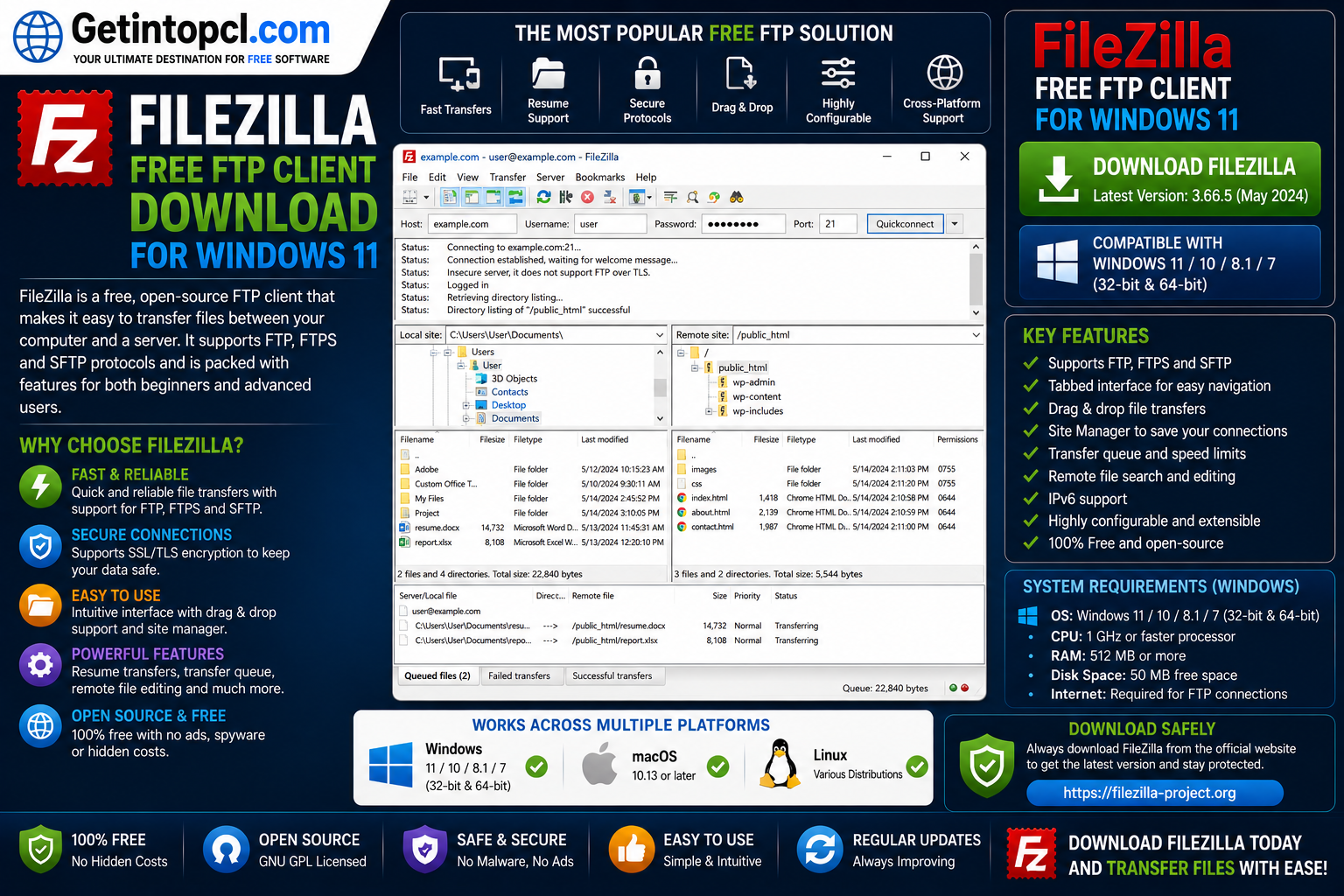
A typical FileZilla interface displays files stored on the local computer alongside files stored on the remote server. Users can transfer files by dragging and dropping them between the two locations.
For example, a website owner can use FileZilla to upload HTML, PHP, CSS, JavaScript, images, themes, plugins, backups, and other website files to a hosting server.
The software should not be confused with FileZilla Server. FileZilla Client is used to connect to remote servers, while FileZilla Server is designed to allow other clients to connect to a server.
Major Uses of FileZilla
FileZilla can be used for many personal and professional file-management tasks.
Uploading Website Files
One of the most common uses of FileZilla is uploading website files to a hosting account or web server. Developers can transfer complete website projects or update individual files when changes are required.
Downloading Files From Remote Servers
Users can also download files from a remote server to their local computer. This can be useful for creating local copies of website files, retrieving logs, or downloading server-side content.
Managing Web Hosting Files
Many hosting providers offer FTP or SFTP access. FileZilla provides a dedicated desktop environment for connecting to these services and managing directories and files.
Secure File Transfers
The FileZilla SFTP client functionality is particularly useful when a server supports SSH-based file transfers. SFTP encrypts the connection, helping protect credentials and transferred data from exposure during transmission.
Transferring Large Files
FileZilla includes features for handling interrupted transfers. When supported by the server, users can resume transfers instead of starting large uploads or downloads from the beginning.
Managing Multiple Server Connections
Users who work with several websites or servers can save connection information in the Site Manager. This makes it easier to organize and access frequently used servers.
Key Features of FileZilla FTP Client
FileZilla has remained popular because it combines essential file-transfer tools with a relatively straightforward interface.
Support for FTP, FTPS and SFTP
The software supports standard FTP connections as well as secure alternatives. Users should generally choose a secure protocol when their hosting provider supports one.
Site Manager
The Site Manager allows users to organize connection details for multiple servers. Connection settings can include the host, port, protocol, encryption method, and authentication preferences.
Drag-and-Drop File Transfers
Files can be moved between the local and remote panels using drag-and-drop functionality. This makes routine file transfers easier for users who prefer a graphical interface.
Transfer Queue
FileZilla can manage multiple file transfers through its queue system. Users can monitor pending, successful, and failed transfers.
Resume and Retry Support
Interrupted file transfers can often be resumed when supported by the server. FileZilla can also retry certain failed transfers according to configured settings.
Directory Comparison
The directory comparison feature helps users compare local and remote folders. This can be useful when maintaining website files or checking whether files differ between two locations.
Bookmarks and Navigation Tools
Users can create bookmarks for frequently accessed directories, helping speed up navigation when working with large file structures.
Remote File Editing
Depending on configuration and permissions, FileZilla can support opening and editing remote files with a local editor before uploading the modified version back to the server.
IPv6 and International Character Support
FileZilla supports modern networking environments, including IPv6, along with support for various character encodings.
These features make it a practical choice for users searching for FTP software for Windows 11 that can handle both basic and advanced file-transfer tasks.
FileZilla Compatibility With Windows, macOS and Linux
FileZilla Client is designed as a cross-platform application.
Windows
FileZilla is available for Microsoft Windows, including modern versions such as Windows 11. Users looking for a FileZilla download for Windows 11 should select the appropriate installer from the official FileZilla Project download page.
The exact supported Windows versions can change as newer FileZilla releases are introduced and older operating systems reach the end of their support lifecycle. Therefore, users of older Windows editions should check the current release notes and official download information before installation.
macOS
FileZilla for Mac is available for supported macOS systems. Compatibility depends on the FileZilla Client version and the requirements of the current macOS build.
Because Apple regularly changes application and architecture requirements, users should verify the requirements of the current FileZilla release before downloading.
Linux
FileZilla for Linux is available for many Linux distributions. Installation may be possible through a distribution’s software repository, package manager, Flatpak, or another supported method depending on the distribution.
Linux compatibility can vary according to the distribution, desktop environment, package availability, and dependencies.
Important Compatibility Limitation
FileZilla’s compatibility should not be treated as identical across every old version of Windows, macOS, and Linux. Users should always check the requirements and installation options for the current release and their specific operating system.
FileZilla System Requirements
The official FileZilla Project does not generally publish a single fixed table of universal minimum and recommended hardware requirements covering processor speed, RAM, graphics performance, and storage capacity for every platform.
For that reason, it would be misleading to invent exact specifications.
The practical FileZilla system requirements can be summarized as follows:
- Operating System: A currently supported version of Windows, macOS, or Linux compatible with the FileZilla Client release being installed.
- Processor: No universal minimum processor specification should be assumed when one is not officially listed.
- RAM: FileZilla does not require a universally published minimum or recommended RAM amount. Memory usage depends on the operating system, number of transfers, file sizes, and workload.
- Storage: Enough available disk space is required for the application, configuration files, temporary data, and any files being downloaded locally. A universal recommended storage amount should not be invented.
- Graphics: No dedicated graphics card is generally required for normal FileZilla use. A standard graphics environment capable of running the supported operating system is sufficient.
- Internet Connection: Required for connecting to FTP, FTPS, SFTP, or supported cloud services. Transfer speed depends on the user’s connection and the remote server.
- Server Credentials: Users normally need valid server details, such as a hostname or IP address, username, password, port, and the appropriate protocol.
- Permissions: Some servers may require specific account permissions before files can be uploaded, downloaded, modified, or deleted.
Because FileZilla is primarily a file-transfer application rather than a graphics-intensive or resource-heavy program, the most important practical factors are operating system compatibility, network access, and available storage for transferred files.
Is FileZilla Free? Free vs FileZilla Pro
The standard FileZilla Client is available as free software under an open-source license. For users who only need FTP, FTPS, and SFTP functionality, the free client can provide the essential features required for ordinary server file transfers.
FileZilla also offers FileZilla Pro, a commercial edition aimed at users who need additional protocols and support for a wider range of cloud storage and web services.
The availability of specific services and features can change as FileZilla Pro evolves, so users should review the current product information before purchasing.
| Feature | FileZilla Client | FileZilla Pro |
|---|---|---|
| FTP support | Yes | Yes |
| FTPS support | Yes | Yes |
| SFTP support | Yes | Yes |
| Standard server file transfers | Yes | Yes |
| Site Manager | Yes | Yes |
| Transfer queue | Yes | Yes |
| Cloud and additional storage protocol support | Limited to the capabilities of the standard client | Expanded support for supported cloud and web storage services |
| Price | Free | Paid commercial product |
Free Version
The free version is suitable for many users who need to connect to web servers using FTP, FTPS, or SFTP.
FileZilla Pro
FileZilla Pro is designed for users who need broader connectivity options, particularly when working with supported cloud storage and additional web-based storage services.
Pricing and purchasing options can change. Therefore, users should check the official FileZilla Pro website or authorized purchasing channels for current pricing rather than relying on outdated third-party information.
Where to Safely Download FileZilla
The safest place to download FileZilla for PC is the official FileZilla Project website.
Users should avoid downloading executable installers from unknown websites, unofficial mirrors, or sources that bundle modified versions of the software.
When downloading FileZilla, follow these basic safety practices:
- Use the official FileZilla Project download page whenever possible.
- Verify that you are downloading FileZilla Client rather than a different product.
- Check whether the selected installer or package includes optional components or offers that you may not want.
- Keep the application updated.
- Download FileZilla Pro only through legitimate purchasing channels.
- Avoid pirated, cracked, modified, or unauthorized copies of paid software.
For Linux, an official distribution repository or a trusted package source may be an appropriate installation option, depending on the distribution.
Advantages of FileZilla
FileZilla offers several important benefits.
- Free standard client available for common FTP, FTPS, and SFTP use.
- Cross-platform availability for Windows, macOS, and Linux.
- Simple dual-panel interface.
- Support for drag-and-drop transfers.
- Site Manager for organizing server connections.
- Transfer queue and monitoring tools.
- Support for resuming compatible transfers.
- Directory comparison and synchronized browsing tools.
- Useful for website owners, developers, and administrators.
- FileZilla Pro provides expanded connectivity for users with additional storage-service requirements.
For users who need dependable FTP software for Windows 11, these features can make FileZilla a practical everyday utility.
Limitations of FileZilla
Although FileZilla is useful, it also has some limitations.
- The interface may initially appear technical to beginners.
- Users must understand the difference between FTP, FTPS, and SFTP to select an appropriate connection method.
- Server configuration problems can prevent successful connections.
- FileZilla cannot bypass hosting permissions or server restrictions.
- Some advanced cloud and storage integrations are associated with FileZilla Pro rather than the standard free client.
- Compatibility with older operating systems may be limited by newer releases.
- Users should carefully select their download source and review installer options.
These limitations do not necessarily make FileZilla unsuitable. They simply mean that users should choose the correct protocol, maintain secure credentials, and use an appropriate version for their operating system.
Who Is FileZilla Best Suited For?
FileZilla is suitable for a wide range of users, including:
- Website owners who upload and manage website files.
- Web developers who regularly transfer project files to development or production servers.
- Bloggers who need direct access to hosting files.
- System administrators who manage compatible remote servers.
- Freelancers working with multiple client hosting accounts.
- Students and learners studying FTP and server management.
- Linux users who need a graphical file-transfer client.
- Windows 11 users looking for a capable and widely used FTP and SFTP application.
The free version is often sufficient for ordinary server transfers. Users with more specialized storage or cloud connectivity requirements may want to compare the standard client with FileZilla Pro.
Frequently Asked Questions
Is FileZilla free to use?
Yes. The standard FileZilla Client is available free of charge and supports common file-transfer protocols such as FTP, FTPS, and SFTP.
Is FileZilla safe to download?
FileZilla is safest when downloaded from the official FileZilla Project website or another legitimate source. Users should avoid modified, cracked, pirated, or unauthorized downloads.
Does FileZilla work on Windows 11?
Yes. FileZilla Client is available for modern Windows systems, including Windows 11, subject to the requirements of the current release.
Does FileZilla work on Mac?
Yes. FileZilla for Mac is available for supported macOS versions. Users should check the current release requirements before installation.
Can I use FileZilla on Linux?
Yes. FileZilla for Linux is available, with installation methods depending on the Linux distribution and available packages.
How much RAM does FileZilla need?
FileZilla does not have a universally published minimum and recommended RAM specification that should be presented as a fixed requirement. Actual memory usage depends on the operating system and workload.
How much storage space does FileZilla require?
The application itself requires available disk space, and additional storage may be needed for downloaded files and temporary transfer data. A fixed recommended amount should not be assumed unless specified for the exact version being installed.
What is the difference between FileZilla and FileZilla Pro?
The standard FileZilla Client is free and focuses on FTP, FTPS, and SFTP file transfers. FileZilla Pro is a paid edition that provides expanded support for additional cloud and web storage services and protocols.
Conclusion
FileZilla is a capable and widely used file-transfer application for users who need to manage files on remote servers. Its support for FTP, FTPS, and SFTP, combined with tools such as Site Manager, drag-and-drop transfers, transfer queues, directory comparison, and cross-platform availability, makes it useful for both beginners and experienced users.
The free FileZilla Client is a strong option for standard website and server file transfers, while FileZilla Pro may be worth considering for users who need expanded cloud and storage connectivity.
Before installing any software, always verify compatibility with your operating system and download from an official or otherwise legitimate source. Visitors looking for a convenient collection of software and download resources can also explore Getintopcl.com to find the products and tools they need.