
VirtualBox Free Download for Windows 11 is a popular option for users who want to run multiple operating systems on one physical computer. Developed and maintained by Oracle, VirtualBox is virtualization software that allows you to create and run virtual machines. A virtual machine behaves like a separate computer inside your existing operating system.
For example, a Windows 11 user can install VirtualBox and create a virtual machine running Ubuntu, another version of Windows, or another supported guest operating system. This makes the software useful for testing applications, learning Linux, experimenting with operating systems, developing software, and running isolated environments without replacing the main operating system.
Oracle VirtualBox is available for major desktop platforms, including Windows, macOS, and Linux. The base package is distributed under an open-source license, while the optional Extension Pack has separate licensing terms. Oracle provides official platform packages and separate downloads for the Extension Pack.
VirtualBox can be used by students, developers, IT professionals, system administrators, testers, and general users who need a free virtual machine software solution. However, successful virtualization depends heavily on the hardware resources available on the host computer, especially the processor, RAM, and storage.
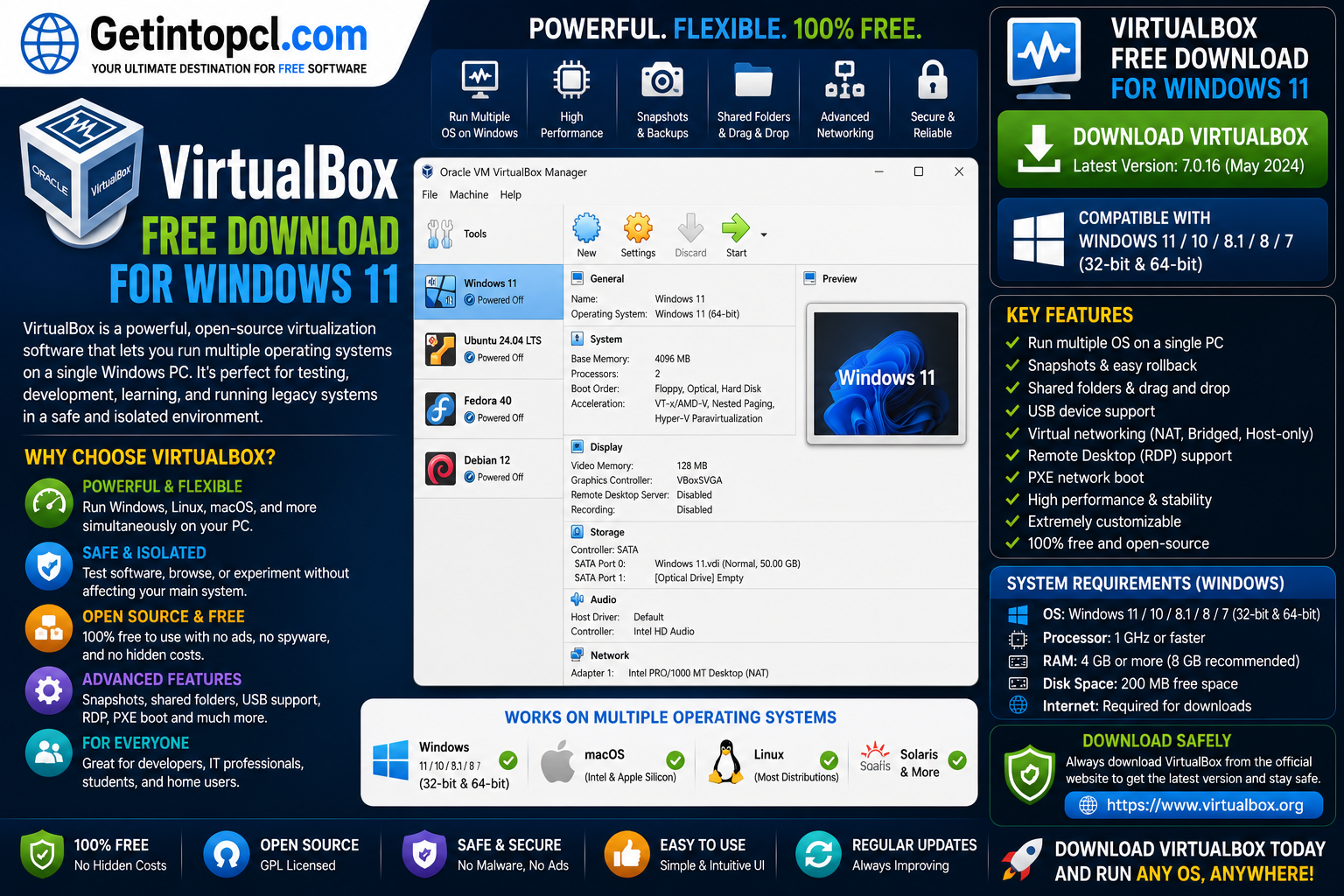
What Is Oracle VirtualBox?
Oracle VirtualBox is a hosted hypervisor designed for x86 and modern desktop virtualization environments. It enables one physical computer, known as the host, to run one or more separate virtual computers, known as guest machines.
Each guest machine can have its own:
- Operating system
- Virtual processor configuration
- Allocated RAM
- Virtual hard disk
- Network settings
- USB and peripheral configuration
- Software and applications
This separation makes a VirtualBox virtual machine useful for experimentation. Instead of installing an unfamiliar operating system directly on your primary computer, you can install it inside a virtual environment.
VirtualBox also provides graphical management tools and command-line utilities. On Linux, Oracle notes that graphical components have additional dependencies, while headless operation can be used without the graphical interface components.
Major Uses of VirtualBox
VirtualBox is designed for many different personal, educational, and professional use cases.
1. Running Multiple Operating Systems
One of the main reasons to download VirtualBox is to run another operating system without removing your existing one.
For example, you may use:
- Windows 11 as the host and Ubuntu as the guest
- Linux as the host and Windows as the guest
- macOS on supported hardware as the host for compatible virtual machine configurations
This allows users to access different operating environments from one computer.
2. Testing Software Safely
Developers and testers can use virtual machines to test software in separate environments.
A virtual machine can be configured with a specific operating system version or software setup. This can help reduce the risk of unwanted changes affecting the main system.
3. Learning Linux and Other Operating Systems
Students and beginners often use VirtualBox for Windows 11 to learn Linux.
Instead of creating a separate partition or replacing Windows, users can install a Linux distribution in a virtual machine and experiment with commands, applications, networking, and system administration.
4. Software Development and Testing
Developers may need to test applications across multiple operating systems or environments.
VirtualBox can help create isolated development and testing environments. Multiple virtual machines can be configured for different versions of an operating system or software stack.
5. Creating Disposable Test Environments
Virtual machines can be used for temporary experiments.
This is useful when testing unfamiliar applications, configurations, or development environments. Users can remove a virtual machine when it is no longer required.
6. Running Legacy Software Environments
Some applications require an older operating system or a specific software environment.
A virtual machine may provide a practical way to preserve such an environment without changing the primary operating system. Compatibility still depends on the guest operating system, available drivers, hardware virtualization support, and the software being used.
Key Features of VirtualBox
Oracle VirtualBox includes a wide range of virtualization and management features.
Cross-Platform Host Support
VirtualBox provides host packages for Windows, macOS, Linux, and other supported platforms. The official download page separates these packages by host operating system.
Support for Multiple Guest Operating Systems
Users can create virtual machines for a variety of guest operating systems, including Windows and many Linux distributions.
The exact experience and compatibility can vary depending on the VirtualBox release and the guest operating system.
Snapshots
Snapshots allow users to preserve the state of a virtual machine at a particular point.
This can be useful before making significant changes. If an experiment causes problems, a previous state may be available for restoration.
Virtual Networking
VirtualBox provides configurable networking options for virtual machines.
Depending on the selected configuration, a guest system can communicate with the internet, the host computer, or other virtual machines.
Shared Folders and Guest Integration
VirtualBox includes guest integration capabilities that can improve interaction between the host and guest systems. Features may include improved display integration and file-sharing options, depending on the guest operating system and installed components.
Command-Line Management
Advanced users can manage virtual machines using command-line tools, making VirtualBox useful for automation and administrative workflows.
Extension Pack Support
The optional VirtualBox Extension Pack provides additional functionality beyond the base package. Oracle identifies extension packs as a way to add features such as extended USB device support and cloud integration capabilities.
VirtualBox Compatibility with Windows, macOS, and Linux
VirtualBox is designed to work across multiple desktop platforms, but compatibility depends on the current release and the host architecture.
VirtualBox for Windows
VirtualBox provides a dedicated package for Windows hosts, making VirtualBox download straightforward for compatible Windows systems.
For users searching for VirtualBox for Windows 11, the official downloads page provides a Windows host installer.
Windows compatibility can change with new releases, so it is best to check the current Oracle documentation before installation.
VirtualBox for Mac
Oracle provides separate downloads for:
- macOS Intel hosts
- macOS Apple Silicon hosts
The availability of separate packages is important because Mac hardware architecture differs between Intel-based Macs and Apple Silicon systems.
Users should download the package that matches their Mac hardware and verify the guest operating system requirements before creating a virtual machine.
VirtualBox for Linux
VirtualBox provides packages for supported Linux distributions. The official download infrastructure includes packages for multiple Debian and Ubuntu releases, among others.
On Linux systems, additional dependencies may be required, particularly when using the graphical interface. Oracle documentation notes requirements such as Qt and SDL for certain graphical components, while headless operation has different requirements.
Important Compatibility Limitations
Virtualization compatibility is not determined by the host operating system alone. Important factors include:
- Processor architecture
- Hardware virtualization support
- BIOS or UEFI configuration
- Available RAM
- Available storage
- Guest operating system compatibility
- Hypervisor conflicts or platform security features
For the most reliable experience, always review the documentation for the specific VirtualBox release you plan to install.
System Requirements for VirtualBox
Oracle’s documentation focuses on supported host platforms and virtualization prerequisites rather than presenting one universal minimum and recommended hardware specification for every possible host and guest combination. Therefore, fixed RAM, processor, or storage figures should not be treated as official requirements unless specified for a particular configuration.
The practical requirements are:
Operating System
- Minimum: A host operating system supported by the VirtualBox release you install.
- Recommended: Use a currently supported and updated version of Windows, macOS, or a supported Linux distribution.
Processor
- Minimum: A processor and architecture compatible with the selected VirtualBox release and guest operating system.
- Recommended: A modern processor with hardware virtualization capabilities enabled when required for the desired virtualization workload.
RAM
- Minimum: Enough memory for the host operating system and the guest operating system to operate.
- Recommended: Additional RAM beyond normal host requirements so the virtual machine can receive sufficient memory without significantly affecting the host.
VirtualBox does not make one universal RAM recommendation because requirements vary substantially depending on the guest operating system and the number of virtual machines running simultaneously.
Storage
- Minimum: Enough available storage for the VirtualBox application, virtual machine files, virtual disks, snapshots, and guest operating system.
- Recommended: SSD storage and sufficient free capacity for the expected number and size of virtual machines.
Graphics
- Minimum: Graphics support compatible with the host operating system.
- Recommended: Use a modern graphics configuration if running graphical guest environments or workloads that require additional display capabilities.
Internet Connection
- Minimum: Not required for basic offline virtualization after the necessary software and installation files have been obtained.
- Recommended: A stable internet connection for downloading VirtualBox, guest operating system images, updates, and online services.
Other Requirements
- Hardware virtualization settings may need to be enabled in BIOS or UEFI.
- Guest operating systems have their own separate system requirements.
- Running multiple virtual machines requires additional CPU, RAM, and storage resources.
Because VirtualBox workloads vary, users should plan their system resources according to the operating systems and applications they intend to run.
Is VirtualBox Free or Premium?
The standard VirtualBox base package is free to download and use under its applicable open-source licensing. Oracle’s official download page identifies the platform packages as being released under the GNU General Public License version 3.
However, VirtualBox also has an optional Extension Pack with separate licensing terms.
Oracle states that the Extension Pack is available for personal and educational use under the applicable Personal Use and Educational License, while commercial or enterprise use may involve different terms.
This means VirtualBox is not a typical freemium application with a standard monthly premium plan for unlocking the basic software. Instead, the main distinction is between the free base package and separately licensed optional extension functionality.
| Feature | VirtualBox Base Package | VirtualBox Extension Pack |
|---|---|---|
| Price | Free download | Licensing depends on intended use and applicable terms |
| Core virtualization | Yes | Requires the base package |
| Virtual machine creation | Yes | No replacement for the base package |
| Basic Windows, macOS, and Linux host packages | Yes, where supported | Installed as an optional add-on |
| Extended USB and additional functionality | Limited to base capabilities | Provides additional features |
| License | GPL under current official distribution terms | Separate Oracle licensing terms |
Always review the current license before installing the Extension Pack, especially for business or enterprise use.
Where to Safely Download VirtualBox
The safest option is to download the software from the official VirtualBox Downloads page.
The official page provides platform packages for supported operating systems, including Windows hosts, macOS hosts, and Linux distributions.
Users should avoid:
- Pirated software websites
- Modified installers from unknown sources
- Cracked or altered Extension Packs
- Unverified download portals
- Installers distributed through suspicious advertisements
Downloading from an official source helps reduce the risk of malware, tampered files, unwanted software, and outdated versions.
If you choose to download VirtualBox through Getintopcl.com, verify that the download points to a legitimate and authorized source and always review the software version and licensing information.
Advantages of VirtualBox
VirtualBox offers several important advantages:
- Free base software
- Supports multiple host platforms
- Can run different guest operating systems
- Useful for testing and development
- Supports snapshots
- Provides networking options
- Supports command-line management
- Suitable for students and professionals
- Allows isolated software environments
- Supports optional extension functionality
The cross-platform design is particularly useful for people who work with Windows, macOS, and Linux environments.
Limitations of VirtualBox
VirtualBox also has limitations that users should consider:
- Virtual machines require significant RAM and storage for demanding workloads.
- Performance is generally lower than running an operating system directly on physical hardware.
- Compatibility varies by host hardware and guest operating system.
- Hardware virtualization settings may need configuration.
- Some advanced functionality requires the separately licensed Extension Pack.
- Running multiple virtual machines can place a heavy load on the processor and memory.
- Guest operating systems and their software may have separate licensing requirements.
For basic learning, testing, and development, these limitations may be manageable. For resource-intensive workloads, users should carefully evaluate their hardware and virtualization requirements.
Who Is VirtualBox Best Suited For?
VirtualBox is particularly suitable for:
Students
Students can use it to learn Linux, networking, programming, system administration, and operating system concepts.
Developers
Developers can create isolated environments for building and testing applications.
IT Professionals
IT professionals can use virtual machines for testing configurations and evaluating software.
Software Testers
Testers can create different operating system environments for compatibility testing.
Linux Beginners
Windows users who want to learn Linux without replacing their existing operating system may find VirtualBox useful.
General Users
Users who want to experiment with another operating system in a separate environment can benefit from VirtualBox for Windows 11 and other supported host platforms.
Frequently Asked Questions
Is VirtualBox free?
Yes. The VirtualBox base package is available as a free download under its applicable GPL licensing terms. The optional Extension Pack has separate licensing conditions.
Is VirtualBox safe to download?
VirtualBox is safest when downloaded directly from Oracle’s official VirtualBox website. Avoid modified, cracked, or unauthorized installers.
Does VirtualBox work on Windows 11?
Yes, Oracle provides a Windows host package for supported VirtualBox releases. Before installation, check the current release documentation and compatibility information for your system.
Does VirtualBox work on Mac?
VirtualBox provides separate packages for supported macOS Intel hosts and macOS Apple Silicon hosts. Compatibility with individual guest operating systems can vary.
Does VirtualBox work on Linux?
Yes. VirtualBox provides packages for supported Linux distributions and releases. Additional dependencies may be needed for graphical components.
How much RAM does VirtualBox need?
There is no single universal RAM figure because requirements depend on both the host and guest operating systems. Your computer needs enough memory for the host and the allocated memory for each running virtual machine.
How much storage does VirtualBox require?
Storage requirements depend on the size of the VirtualBox installation, guest operating systems, virtual disks, snapshots, and files stored inside virtual machines. An SSD with sufficient free space can improve the overall experience.
Is there a premium version of VirtualBox?
The base VirtualBox package is free. Oracle also offers an optional Extension Pack with separate licensing terms and additional functionality. Personal and educational use may be covered by the applicable Oracle license, while commercial and enterprise use can involve different terms.
Conclusion
VirtualBox is a powerful and flexible virtualization solution for users who want to run Windows, Linux, and other supported operating systems in virtual machines. Its free base package, cross-platform availability, snapshots, networking options, and development-friendly tools make it suitable for students, developers, IT professionals, testers, and everyday users.
Before installing, make sure your computer has enough processor resources, RAM, and storage for both the host and guest operating systems. For the safest experience, always verify compatibility and download software from legitimate sources. Visitors can also explore Getintopcl.com to find the software products they need and access relevant download resources.