
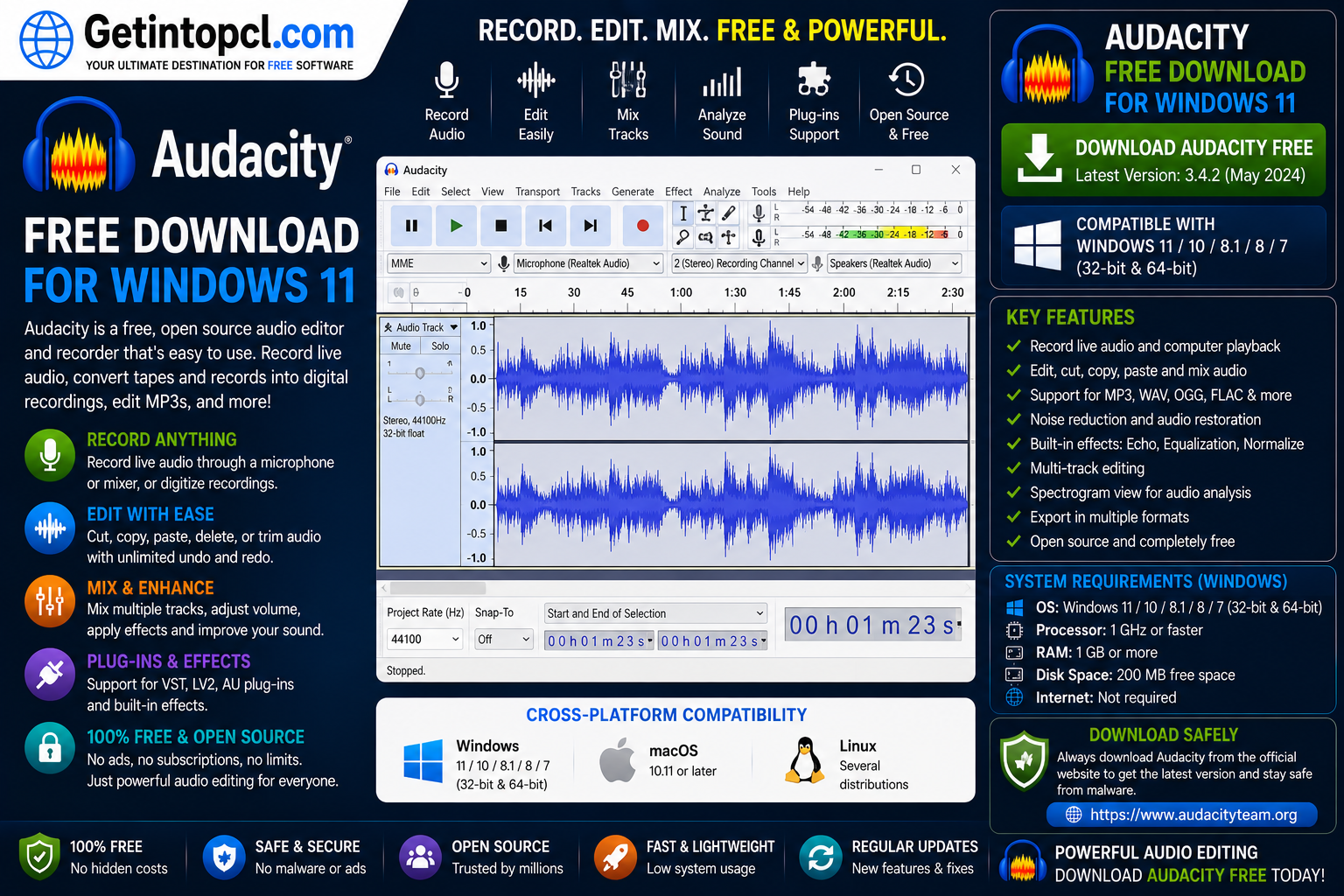
Audacity Free Download for Windows 11 gives users access to one of the most popular free applications for recording, editing, mixing, and exporting digital audio. Audacity is a free, open-source, multi-track audio editor and recorder available for Windows, macOS, and GNU/Linux. It is developed by the Audacity team with contributions from a worldwide open-source community and is licensed under the GNU General Public License.
Audacity is designed for a wide range of users. Podcasters can use it to record and edit spoken content, musicians can create and modify recordings, educators can analyze sound, and everyday users can trim, convert, enhance, or clean up audio files.
The current Audacity website lists Audacity 4.0.0 as the latest release. Windows users can download x86_64 and ARM64 installers, while macOS and Linux versions are also available.
For Windows 11 users, Audacity provides a straightforward desktop interface combined with powerful editing tools. It supports common audio formats and can be extended through plugins. Users can also work offline after installation, meaning an internet connection is not required to continue using the installed application.
What Is Audacity?
Audacity is an audio editing and recording application that allows users to capture sound from microphones, audio interfaces, and other supported sources. It can then be used to edit recordings, apply effects, mix tracks, and export finished projects.
Unlike many professional digital audio workstations that require subscriptions or expensive licenses, Audacity is available free of charge. The official FAQ states that Audacity will remain free for everyone.
The application can be useful for simple tasks such as cutting an audio clip as well as more advanced projects involving multiple tracks, effects, noise reduction, frequency analysis, and audio conversion.
Audacity is also open source. Its source code is available for inspection and modification under its GPL license.
Major Uses of Audacity
Audacity can be used for many different audio-related tasks.
Voice recording: Users can record narration, interviews, lectures, voiceovers, and other spoken content using a microphone.
Podcast production: Podcasters can record multiple tracks, remove unwanted sections, adjust volume, add effects, and export finished episodes.
Music editing: Musicians can record instruments or vocals and edit individual sections of a recording.
Audio trimming: Users can cut unwanted sections from recordings without needing a professional studio application.
Noise reduction: Audacity provides tools for reducing certain types of unwanted background noise.
Audio conversion: Users can import and export audio in multiple formats.
Multi-track editing: Several audio tracks can be combined and edited within a single project.
Sound analysis: Spectrogram and other analysis tools can help users examine audio frequencies.
Voiceover creation: YouTubers and content creators can record and improve narration for videos.
Educational audio work: Teachers, students, and researchers can record and analyze sound for educational projects.
HandBrake Free Download for Windows 11 64-Bit – Latest Version
Features
Audacity includes a broad selection of recording, editing, mixing, and audio-processing features.
- Multi-track audio recording
- Multi-track audio editing
- Microphone recording
- Audio interface support
- Cut, copy, paste, and trim tools
- Noise reduction
- Compressor
- Equalization and audio effects
- Pitch changing
- Speed changing
- Vocal remover
- Spectrogram view
- Audio analysis tools
- Multiple audio formats
- MP3 export
- WAV export
- FLAC export
- Ogg export
- VST3 plugin support
- Nyquist plugin support
- Third-party plugin compatibility
- Customizable interface
- Undo and redo
- Offline editing
- Cross-platform support
The official Audacity website highlights features such as Compressor, Speed Changer, Pitch Changer, Noise Reduction, and Vocal Remover. It also supports importing, exporting, and converting major audio formats.
Audacity 4.0.0 also introduces an updated interface, Workspaces, and productivity improvements designed to make the application more flexible and easier to customize.
Audio Recording with Audacity
Audacity can turn a Windows 11 PC into a capable audio-recording workstation.
Users can connect microphones through USB, 3.5mm connections, or compatible audio interfaces. Once the appropriate input device is selected, recording can be started directly from the application.
This makes Audacity useful for podcasts, interviews, voiceovers, lectures, music demonstrations, and other recording projects.
The official getting-started documentation recommends connecting the microphone, checking the input level, recording a take, and then listening back to confirm the recording.
Audio Editing with Audacity
Audacity provides tools for editing individual sections of an audio recording.
Users can select portions of a track and cut, copy, trim, silence, or otherwise modify them. The application also supports undo functionality, allowing users to reverse unwanted changes.
For more advanced projects, multiple tracks can be arranged and mixed together.
A typical podcast project, for example, could contain a voice recording, background music, and additional sound effects. Each component can be edited separately before being combined into the final project.
Audacity Noise Reduction
Noise reduction is one of the most useful features for people recording in environments that are not completely quiet.
Background sounds can sometimes include computer fans, electrical noise, air-conditioning sounds, or other consistent background interference. Audacity provides noise-reduction tools that can help improve certain recordings.
Results depend on the original recording and the type and level of background noise. Noise reduction should be applied carefully because aggressive processing can affect the quality of the desired voice or music.
Audacity Plugin Support
Audacity can be expanded through audio plugins.
The current official website lists support for third-party plugins, including VST3 and Nyquist, allowing users to add additional effects and processing capabilities.
Plugins can be useful for musicians, podcasters, voiceover artists, and advanced audio users who require effects beyond the standard tools included with the application.
Users should obtain plugins from trustworthy sources and make sure that the plugin architecture is compatible with their Audacity installation.
Audacity for Windows 11
Audacity is officially tested on Windows 10 and Windows 11, making it a suitable choice for users searching for Audacity for Windows 11. Both x86_64 and ARM64 versions are available.
For a standard modern Windows 11 computer using an Intel or AMD processor, the x86_64 installer is generally the appropriate choice.
Audacity also provides an ARM64 version for Windows on ARM. However, the official documentation identifies the ARM64 build as having important limitations, including no plugin support. It also requires an ARM64-compatible FFmpeg installation when FFmpeg is needed.
Windows users can choose between installer and ZIP packages on the official download page. The normal installer is generally the simplest option for most users.
Audacity for Mac
Audacity is also available for macOS.
The official download information provides a macOS version and supports Universal Binary builds, allowing the application to run on supported Intel and Apple Silicon Macs.
The official FAQ currently identifies macOS 12 and 13 as tested-compatible versions, while noting that older OS X versions may still work. Users should check the current system requirements before installing on an older Mac.
Mac users should download the official DMG package and place the application in the Applications folder during installation.
Audacity for Linux
Audacity is available for GNU/Linux as well.
The official download page provides Linux AppImage downloads, while many Linux distributions also provide Audacity through their package-management systems.
The official FAQ identifies Ubuntu 22.04 as a tested Linux environment while noting that most major Linux distributions are believed to work.
Because Linux distributions differ in their libraries, desktop environments, and packaging systems, exact compatibility can vary. Users should consult the Audacity documentation and their distribution’s package information when installing.
### System Requirements
Audacity’s official Windows requirements are relatively flexible. The current Windows documentation states that Audacity is tested on Windows 10 and Windows 11 and has no specific CPU or GPU requirements.
Minimum / Officially Specified Requirements
Audacity does not publish a separate detailed minimum CPU, RAM, GPU, and storage table for the current Windows release.
The officially documented requirements and considerations include:
- Operating System: Windows 10 or Windows 11
- Processor: No specific CPU requirement published
- RAM: No specific RAM requirement published
- Storage: Around 500 MB of free disk space is required for installation according to the official installation guide
- Graphics: No specific GPU requirement
- Architecture: x86_64 and ARM64 versions are available
- Internet: Not required after installation
- Disk: Fast, uninterrupted access to a hard drive or SSD is recommended
- External storage: Network storage, consumer-grade external hard drives, and USB thumb drives may be unreliable for Audacity projects
Recommended Considerations
Audacity does not provide a separate official “recommended RAM” or “recommended processor” specification for Windows.
For practical use, the amount of memory and storage needed will depend heavily on project size. Large multi-track recordings, long audio files, high sample rates, and numerous effects can require considerably more storage and system resources than a short voice recording.
Users working with large projects should therefore have sufficient free storage and a modern Windows 11 computer.
### Technical Setup Details
Audacity is a desktop application rather than a web-based audio editor. After installation, users can launch it directly from Windows and work on local projects.
The official installation guide states that installation takes approximately five minutes in typical circumstances and requires around 500 MB of free disk space. An account and license key are not required.
Audacity also does not require an Internet connection after installation. This is useful for users who need to edit locally stored audio while offline.
For Windows 11 users, the standard x86_64 installer is the normal choice for Intel and AMD systems. ARM64 users can select the ARM64 beta build, but should be aware that plugin support is currently unavailable in that build.
Is Audacity Free or Paid?
Audacity is free software and does not require a traditional paid license or subscription.
The official FAQ states that Audacity is free for everyone and will remain free. It can be used for personal, commercial, and educational purposes under its GPL license.
There is also no requirement to create an account simply to install and use the desktop application. The official installation documentation specifically states that Audacity does not require an account or license key.
| Feature | Audacity |
|---|---|
| Price | Free |
| Subscription | Not required |
| License | GPL |
| Windows 11 | Yes |
| macOS | Yes |
| Linux | Yes |
| Audio recording | Yes |
| Multi-track editing | Yes |
| Noise reduction | Yes |
| Plugins | Yes |
| MP3 export | Yes |
| WAV export | Yes |
| FLAC export | Yes |
| Offline use | Yes |
| Account required | No |
Audacity also has optional cloud-related services through the wider Audacity ecosystem, but these do not change the fact that the core desktop Audacity application remains free.
Audacity Audio Formats
Audacity supports a wide range of audio formats.
The official website specifically highlights the ability to import, export, and convert major audio formats, including WAV, MP3, FLAC, and Ogg.
An optional FFmpeg library can extend support for additional formats, including WMA, M4A, AC3, and others.
This makes Audacity useful when users need to convert audio from one format to another or prepare recordings for different platforms.
Advantages of Audacity
- Completely free to use
- Open-source software
- Windows 11 support
- macOS and Linux support
- Multi-track recording and editing
- Useful noise-reduction tools
- Extensive audio effects
- VST3 and other plugin support
- Supports common audio formats
- No license key required
- No account required for desktop installation
- Works offline after installation
- Suitable for beginners and advanced users
- Regularly updated
- Large community and documentation ecosystem
Limitations of Audacity
- It is primarily a desktop application rather than a mobile application.
- Beginners may need time to learn advanced audio-editing features.
- Large projects can require significant storage.
- Some additional audio formats require the optional FFmpeg library.
- Plugin compatibility can vary depending on the plugin and Audacity build.
- Windows ARM64 currently has plugin-support limitations.
- It does not provide the complete workflow of a high-end professional DAW designed specifically for large music-production projects.
- Network storage and some external storage devices may be unreliable for active Audacity projects.
Who Should Use Audacity?
Audacity is suitable for anyone who needs practical audio recording and editing tools without paying for a professional subscription.
It is particularly useful for:
- Podcasters
- YouTubers
- Musicians
- Voiceover artists
- Students
- Teachers
- Researchers
- Content creators
- Journalists
- Hobbyists
- Audio enthusiasts
- Windows 11 users
- Users who need a free audio editor
For simple recording, trimming, noise reduction, and format conversion, Audacity can be more than sufficient. More experienced users can take advantage of multi-track editing, effects, plugins, and audio-analysis tools.
Where to Safely Download Audacity
The safest place to download Audacity is the official Audacity website. The official download page provides Windows, macOS, and Linux builds and clearly identifies the available architectures.
For most Windows 11 Intel or AMD PCs, select the Windows x86_64 installer. Users with Windows on ARM can use the ARM64 build while keeping its current limitations in mind.
The official website also provides ZIP packages and older releases when required.
Users should avoid suspicious websites offering modified Audacity installers, unauthorized repacks, or downloads that bundle unrelated software. The official Audacity FAQ specifically recommends downloading Audacity from the official website.
Official Audacity Download: Download Now
How to Install Audacity on Windows 11
Installing Audacity on Windows 11 is straightforward.
- Visit the official Audacity download page.
- Select the Windows download.
- Choose the x86_64 installer for a standard Intel or AMD Windows 11 PC.
- Download the installer.
- Open the downloaded
.exefile. - Follow the installation wizard.
- Select the desired installation location.
- Complete the installation.
- Launch Audacity from the Start menu.
- Connect your microphone or audio interface.
- Select the correct recording input.
- Adjust the recording level.
- Record a short test.
- Edit the recording and export it to your preferred format.
The official installation documentation states that users can generally accept the installer’s default settings.
Frequently Asked Questions
Is Audacity free?
Yes. Audacity is free software and does not require a paid subscription or license key. The official FAQ states that Audacity will remain free for everyone.
Does Audacity work on Windows 11?
Yes. Audacity is officially tested on Windows 10 and Windows 11. Current Windows downloads include x86_64 and ARM64 versions.
How much RAM does Audacity require?
Audacity does not publish a specific minimum or recommended RAM figure for the current Windows release. Its official Windows documentation states that there is no specific CPU or GPU requirement.
How much storage does Audacity need?
The official installation guide states that around 500 MB of free disk space is needed for installation. Additional storage is required for audio recordings and projects, particularly when working with long or multi-track files.
Does Audacity work on Mac?
Yes. Audacity is available for macOS, including Universal Binary builds designed for supported Intel and Apple Silicon Macs.
Does Audacity work on Linux?
Yes. Audacity is available for GNU/Linux, including AppImage downloads and distribution packages. The official FAQ lists Ubuntu 22.04 as a tested environment.
Does Audacity require an Internet connection?
No. An Internet connection is not required after Audacity has been installed. Internet access may be needed for downloading the application, updates, or additional resources.
Where can I safely download Audacity for Windows 11?
The safest option is the official Audacity website. It provides the current Windows installers and ZIP packages directly.
Conclusion
Audacity is one of the most capable free audio editing and recording applications available for Windows 11. It combines multi-track recording, audio editing, noise reduction, effects, format conversion, plugin support, and audio-analysis tools in a single desktop application.
Its support for Windows, macOS, and Linux also makes it a flexible choice for users who work across different operating systems. Windows 11 users can choose the x86_64 build for conventional Intel and AMD computers or the ARM64 build where appropriate, while keeping the current ARM64 plugin limitations in mind.
If you are looking for Audacity Free Download for Windows 11, Getintopcl can help you discover useful software, understand its features and system requirements, and find reliable download information. Always choose an authentic source when downloading software to ensure that you receive a legitimate and secure installer.