
Microsoft Office 2010 vs Microsoft Office 2013 is an important comparison for users who want to understand the changes between two generations of Microsoft’s desktop productivity software. Both versions provide applications for creating documents, managing spreadsheets, preparing presentations, and handling email. However, Office 2013 introduced a redesigned interface, improved cloud integration, touch-friendly controls, and several productivity enhancements.
Office 2010 was a major release that introduced the Ribbon interface across more Office applications and improved tools for document creation and collaboration. Office 2013 built on this experience with a more modern design, better integration with OneDrive, improved PDF handling in Word, and new features in Excel and PowerPoint.
This article compares Microsoft Office 2010 and Office 2013 in terms of features, applications, system requirements, installation, compatibility, advantages, disadvantages, and support status. It also explains which version is more suitable for different types of users.
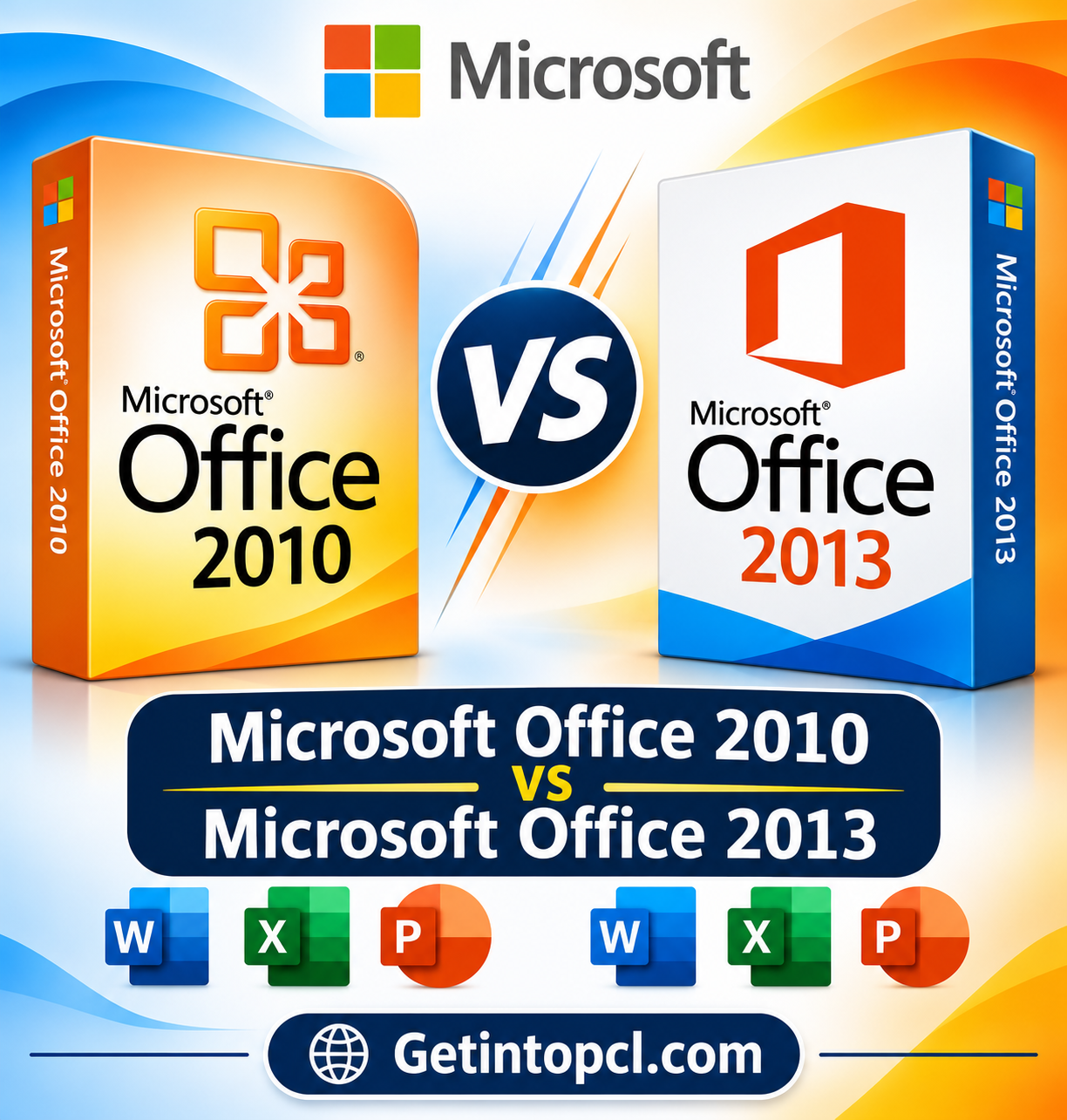
1. Microsoft Office 2010 vs Office 2013: Quick Comparison
| Feature | Microsoft Office 2010 | Microsoft Office 2013 |
|---|---|---|
| Release year | 2010 | 2013 |
| User interface | Ribbon interface with Backstage View | Modernized interface with touch-friendly design |
| Main applications | Word, Excel, PowerPoint, Outlook and others, depending on edition | Word, Excel, PowerPoint, Outlook and others, depending on edition |
| Cloud integration | Limited compared with newer versions | Improved OneDrive integration |
| Document sharing | Sharing and review tools | Improved online sharing and collaboration workflows |
| Word | Navigation Pane, improved picture tools and document editing | PDF editing, Reading Mode and online picture insertion |
| Excel | Sparklines, slicers and improved data tools | Flash Fill, Quick Analysis and additional features |
| PowerPoint | Broadcast Slide Show, video editing and transitions | Presenter improvements, online picture tools and new design features |
| Outlook | Conversation View and email management tools | Improved interface and connected-service features |
| Touch support | Limited | Better touch-friendly controls |
| Installation | Windows Installer or Click-to-Run, depending on edition | Primarily Click-to-Run |
| License | Perpetual purchase or organizational licensing | Perpetual purchase or organizational licensing |
| Support status | Ended October 13, 2020 | Ended April 11, 2023 |
Office 2013 is the newer version and offers a more modern interface, improved cloud integration, and additional features in several applications. Both versions have reached the end of Microsoft’s support period.
2. What Is Microsoft Office 2010?
Microsoft Office 2010 is a desktop productivity suite released in June 2010. It followed Office 2007 and continued the Ribbon-based interface while improving the way users create, edit, organize, and share documents.
Office 2010 was designed for home users, students, professionals, and businesses. It includes familiar applications such as Word, Excel, PowerPoint, and Outlook, although the exact applications depend on the edition.
One of its important changes was the introduction of Backstage View, which provides a centralized area for saving, printing, sharing, and managing documents. Office 2010 also improved media editing, presentation tools, and spreadsheet analysis.
Main Features of Microsoft Office 2010
-
Ribbon interface: Provides organized tabs and command groups for accessing application tools.
-
Backstage View: Makes it easier to manage files, print documents, save files, and adjust settings.
-
Improved Word tools: Offers enhanced document navigation, picture editing, and text formatting.
-
Excel Sparklines: Displays small charts inside spreadsheet cells to show data trends.
-
PowerPoint video editing: Includes tools for editing and formatting video within presentations.
-
Broadcast Slide Show: Allows supported users to present slides remotely through an online service.
-
Outlook Conversation View: Groups related email messages into conversations.
-
Protected View: Opens certain potentially unsafe files in a restricted environment.
-
OneNote improvements: Provides tools for collecting, organizing, and searching notes in supported editions.
Office 2010 is still capable of handling many traditional office tasks, including writing documents, calculating spreadsheet data, and creating presentations. However, Microsoft ended its support on October 13, 2020. The applications may continue to work, but they no longer receive regular security updates or technical support.
3. What Is Microsoft Office 2013?
Microsoft Office 2013 is a desktop productivity suite released in January 2013. It introduced a redesigned appearance and improved integration with Microsoft’s online services. The software was developed for users who wanted familiar Office applications with a more modern interface and additional productivity features.
Office 2013 includes applications such as Word, Excel, PowerPoint, Outlook, OneNote, Access, and Publisher, depending on the edition.
One of its most noticeable changes is its simplified interface, which is designed to work better with touch-enabled devices. It also introduced improved document sharing and cloud storage integration, making it easier to access files through a Microsoft account.
Main Features of Microsoft Office 2013
-
Modern interface: Provides a cleaner design with simplified navigation and touch-friendly controls.
-
OneDrive integration: Makes it easier to save and access documents through Microsoft’s cloud storage service.
-
PDF editing in Word: Allows users to open and edit supported PDF files in Microsoft Word.
-
Reading Mode: Provides a reading-focused layout for reviewing documents.
-
Flash Fill in Excel: Recognizes patterns in data and automatically fills related information.
-
Quick Analysis: Helps users quickly apply formatting, charts, totals, and other analysis tools.
-
Improved PowerPoint: Includes enhanced presentation tools and Presenter View.
-
Outlook improvements: Offers a redesigned interface and additional calendar and email-management features.
-
Touch-friendly controls: Makes Office applications easier to use on compatible touch-enabled devices.
Office 2013 provides a more modern experience than Office 2010, particularly for users who work with cloud-based files or touch-enabled computers. However, Microsoft ended support on April 11, 2023.
Microsoft Learn+1
4. Main Differences Between Microsoft Office 2010 and Office 2013
User Interface and Navigation
Office 2010 uses the Ribbon interface introduced in Office 2007, with tabs and command groups for accessing application tools. It also introduced Backstage View, which makes file management tasks such as saving, printing, and sharing more accessible.
Office 2013 keeps the Ribbon but gives it a cleaner, flatter appearance. Its interface is designed to be more touch-friendly and offers a simplified experience for users working on modern computers.
Winner: Office 2013, because of its updated design and improved touch support.
Cloud Integration and File Sharing
Office 2010 primarily focuses on working with files stored locally or on organizational networks. It includes some online capabilities, but its cloud integration is limited compared with later Office releases.
Office 2013 places more emphasis on cloud storage and Microsoft account integration. Users can save documents to OneDrive and access them through compatible devices and services.
This makes Office 2013 more convenient for users who regularly move between computers or need to access documents online.
Winner: Office 2013.
Microsoft Word
Word 2010 provides tools for writing, formatting, reviewing, and printing documents. It includes improved picture editing, navigation features, and document protection options compared with earlier versions.
Word 2013 introduces a more noticeable change by allowing users to open and edit supported PDF files directly in Word. It also includes Reading Mode, improved online picture insertion, and better cloud-based document access.
For users who frequently work with PDFs or read documents on screen, Word 2013 offers a more convenient experience.
Winner: Office 2013.
Microsoft Excel
Excel 2010 includes useful spreadsheet features such as Sparklines, slicers, improved conditional formatting, and enhanced data-analysis tools. These features make it suitable for budgets, business reports, calculations, and data organization.
Excel 2013 adds Flash Fill and Quick Analysis. Flash Fill can recognize patterns in data and complete related entries automatically. Quick Analysis provides shortcuts for applying charts, formatting, totals, and other tools to selected data.
Office 2013 is particularly useful for users who frequently clean, organize, and analyze spreadsheet information.
Winner: Office 2013.
Microsoft PowerPoint
PowerPoint 2010 introduced useful improvements in video editing, picture formatting, transitions, and online presentations. It also supports Broadcast Slide Show for presenting slides remotely through supported services.
PowerPoint 2013 improves the presentation experience with an updated interface, enhanced Presenter View, and additional tools for working with online pictures and content. Its interface is also more suitable for touch-enabled devices.
Winner: Office 2013, for its updated presentation workflow and interface.
Microsoft Outlook
Outlook 2010 includes email management, calendars, contacts, and task features. Conversation View helps organize related email messages, while other improvements make it easier to manage communication.
Outlook 2013 introduces a redesigned interface and additional calendar and email-management features. It also provides a more modern experience when connected to compatible online services.
Winner: Office 2013, although the practical difference depends on the user’s email setup and workflow.
Performance and Compatibility
Office 2010 was designed for older Windows environments and computers with relatively modest hardware. This can make it relevant for users maintaining older systems.
Office 2013 introduces a newer interface and additional features, but it was designed for more recent Windows versions. Performance depends on the computer’s processor, memory, storage, operating system, and the size of the documents being handled.
Winner: It depends. Office 2010 may be more appropriate for certain older computers, while Office 2013 offers more features on compatible systems.
5. Microsoft Office 2010 vs Office 2013: Editions and Applications
The applications included in each version depend on the edition and licensing arrangement. Both releases offered different packages for home users, students, professionals, and businesses.
| Application | Office 2010 | Office 2013 |
|---|---|---|
| Word | Available in common editions | Available in common editions |
| Excel | Available in common editions | Available in common editions |
| PowerPoint | Available in common editions | Available in common editions |
| Outlook | Included in selected editions | Included in selected editions |
| OneNote | Included in selected editions | Included in selected editions |
| Access | Included in selected Professional editions | Included in selected Professional editions |
| Publisher | Included in selected Professional editions | Included in selected Professional editions |
Common Office 2010 Editions
-
Home and Student: Designed for home users and students, with core applications such as Word, Excel, PowerPoint, and OneNote.
-
Home and Business: Includes Outlook alongside the main productivity applications.
-
Professional: Provides additional applications such as Access and Publisher.
-
Professional Plus: A business-focused edition distributed through qualifying licensing arrangements.
-
Starter: A limited edition that included basic versions of Word and Excel with reduced functionality.
Common Office 2013 Editions
-
Home and Student: Includes core productivity applications for personal and educational use.
-
Home and Business: Adds Outlook for email and calendar management.
-
Professional: Includes additional applications such as Access and Publisher.
-
Professional Plus: Provides a broader application set for qualifying business and organizational licensing.
The exact applications and licensing terms vary by edition. Users should check the product edition before installing or purchasing a license.
6. System Requirements: Office 2010 vs Office 2013
System requirements determine whether a computer can install and run an Office version. Office 2010 supports older Windows environments, while Office 2013 was designed for newer operating systems and hardware.
Microsoft Office 2010 System Requirements
Office 2010 was designed to run on older Windows computers, including Windows XP with Service Pack 3, Windows Vista with Service Pack 1, and Windows 7. Its published requirements were relatively modest for its time.
| Component | Office 2010 requirement |
|---|---|
| Processor | 500 MHz or faster |
| RAM | 256 MB minimum; 512 MB recommended for certain features |
| Storage | 3 GB available disk space |
| Display | 1024 × 576 or higher |
| Operating system | Windows XP SP3, Windows Vista SP1, Windows 7, or supported Windows Server versions |
| Architecture | 32-bit and 64-bit editions, subject to operating-system compatibility |
| Internet | Needed for online services and applicable activation or setup processes |
Some advanced features and individual applications may require additional resources. For example, Outlook with Business Contact Manager had higher processor and memory requirements.
Microsoft Office 2013 System Requirements
Office 2013 requires more memory than Office 2010 and was designed for newer Windows versions. Its requirements vary slightly depending on the application and architecture.
| Component | Office 2013 requirement |
|---|---|
| Processor | 1 GHz or faster x86 or x64 processor with SSE2 |
| RAM | 1 GB for 32-bit; 2 GB for 64-bit |
| Storage | 3 GB available disk space |
| Display | 1024 × 576 or higher |
| Graphics | DirectX 10 graphics card for hardware acceleration |
| Operating system | Windows 7 SP1, Windows 8, Windows Server 2008 R2, or Windows Server 2012 |
| Architecture | 32-bit and 64-bit editions |
| Internet | Needed for online services and applicable setup or activation processes |
These are historical requirements for Office 2013, not a guarantee that every edition or installer will work correctly on a modern Windows release.
Microsoft Learn
Which Version Requires Less Hardware?
Office 2010 has lower published minimum memory and processor requirements, making it better suited to some older computers. Office 2013 requires more RAM but offers additional features and a more modern interface.
For basic offline tasks on a compatible older system, Office 2010 may be sufficient. For users with compatible hardware who need PDF editing in Word, Flash Fill, and improved cloud integration, Office 2013 is the more capable option.
However, both products are unsupported, so hardware compatibility should not be the only factor when choosing an Office version.
7. Technical Setup Details
Before installing Office 2010 or Office 2013, check the Windows version, Office edition, processor architecture, and license. Both versions were available in 32-bit and 64-bit configurations, but their installation methods and supported environments differ.
| Setup detail | Office 2010 | Office 2013 |
|---|---|---|
| Software type | Desktop productivity suite | Desktop productivity suite |
| Installation technology | Windows Installer or Click-to-Run, depending on edition | Primarily Click-to-Run |
| Architecture | 32-bit and 64-bit | 32-bit and 64-bit |
| License | Perpetual purchase or organizational licensing | Perpetual purchase or organizational licensing |
| Activation | Product key or licensing method associated with the edition | Product key or Microsoft account, depending on license |
| File formats | DOCX, XLSX, PPTX and supported legacy formats | DOCX, XLSX, PPTX and supported legacy formats |
| Internet requirement | Needed for online features and applicable activation processes | Needed for online features and applicable activation processes |
Installation Process
The general installation process for both versions involves these steps:
-
Check whether your Windows version meets the requirements for the Office edition.
-
Confirm that you have a valid Office product key or the Microsoft account associated with your purchase.
-
Obtain the installation files through Microsoft’s official channels, where they remain available for your license.
-
Run the installation program and follow the on-screen instructions.
-
Wait for the installation to finish.
-
Open Word, Excel, or another Office application.
-
Complete product activation using the method associated with your license.
32-bit vs 64-bit Installation
Office 2010 and Office 2013 both offer 32-bit and 64-bit versions.
The 32-bit edition can be useful for older add-ins and compatibility with certain applications. The 64-bit edition can be more suitable for large Excel workbooks and tasks that use substantial memory.
Before installing either architecture, check your Windows version and the compatibility of your Office add-ins. Switching between 32-bit and 64-bit Office may require uninstalling the existing installation first.
8. Pricing and Licensing: Office 2010 vs Office 2013
Microsoft Office 2010 and Office 2013 were commercial productivity suites sold under different editions and licensing arrangements. Many consumer editions were available as one-time purchases, while business editions could be distributed through organizational or volume-licensing agreements.
A perpetual license generally allows users to continue using the purchased version under its license terms. However, it does not provide unlimited software updates or ongoing technical support.
Both products have reached the end of their support periods. Their availability and pricing now depend on existing licenses and legitimate sellers. Be cautious of websites advertising unusually cheap product keys or modified installation files.
For users who already own a valid license, the original edition and associated Microsoft account or product key may determine whether installation is still possible.
9. Download Microsoft Office 2010 and Office 2013
For safety, use Microsoft’s official product information and account-based installation channels rather than third-party download websites.
-
Microsoft Office 2010: Official Microsoft Office 2010 page
-
Microsoft Office 2013: Official Microsoft Office 2013 page
Important Download Notice: Microsoft has ended support for both products. Its Office 2010 support documentation also states that Office 2010 can no longer be downloaded from Microsoft’s website. The official product pages provide product information and upgrade guidance; they should not be treated as guaranteed direct installer links. Existing installation access depends on your edition, license, and available Microsoft account options.
Microsoft Support+3
Support Status
-
Office 2010: Support ended on October 13, 2020.
-
Office 2013: Support ended on April 11, 2023.
Both versions may continue to function on compatible computers, but Microsoft no longer provides regular security updates, bug fixes, or technical support. Using unsupported Office applications can expose computers and documents to security risks.
Microsoft Learn+2
10. Advantages and Disadvantages
Microsoft Office 2010
Advantages
-
Lower historical hardware requirements.
-
Familiar desktop applications for everyday office tasks.
-
Includes Word, Excel, PowerPoint, and other applications depending on edition.
-
Offers useful spreadsheet and presentation tools.
-
Supports common Microsoft Office document formats.
-
Can be suitable for certain older Windows computers.
Disadvantages
-
No longer receives security updates or technical support.
-
Limited cloud integration compared with Office 2013.
-
Does not include Word’s PDF editing capabilities introduced in Office 2013.
-
Lacks Flash Fill and Quick Analysis in Excel.
-
Has an older user interface.
-
Less suitable for users who regularly work with cloud-based documents.
Microsoft Office 2013
Advantages
-
More modern and touch-friendly interface.
-
Improved OneDrive integration.
-
PDF editing in Microsoft Word.
-
Flash Fill and Quick Analysis in Excel.
-
Improved document-reading and presentation tools.
-
Better support for cloud-based workflows.
-
Supports familiar Office file formats.
Disadvantages
-
Higher hardware requirements than Office 2010.
-
No longer receives security updates or technical support.
-
Some online features depend on compatible Microsoft services.
-
May not work reliably on every modern Windows configuration.
-
Does not include the continuously updated features available in Microsoft 365.
11. Which Is Better: Microsoft Office 2010 or Office 2013?
Microsoft Office 2013 is generally the better version when comparing features, interface design, and productivity tools. It improves several applications and introduces features that make everyday work more convenient.
Office 2010 can still be useful for basic document creation, spreadsheets, and presentations on compatible older computers. Its lower hardware requirements may also make it relevant for users maintaining an older Windows environment.
However, Office 2013 offers more practical improvements for users who work with PDFs, organize spreadsheet data, or access documents through cloud services.
Final Verdict: Microsoft Office 2013 wins the overall comparison because of its modern interface, improved cloud integration, PDF editing in Word, and additional Excel features. Office 2010 may suit basic tasks on older computers, but neither version is recommended as a fully supported productivity solution in 2026.
12. Frequently Asked Questions
1. What is the main difference between Microsoft Office 2010 and Office 2013?
The main difference is the updated interface and additional productivity features in Office 2013. It introduces improved OneDrive integration, PDF editing in Word, Flash Fill in Excel, and better touch support.
2. Is Microsoft Office 2013 better than Office 2010?
Yes. Office 2013 is generally better in terms of features, interface design, and cloud integration. Office 2010 remains useful for basic tasks on compatible older computers.
3. Can I open Office 2013 files in Office 2010?
Both versions support common Office formats such as DOCX, XLSX, and PPTX. Most standard files created in Office 2013 can be opened in Office 2010, although some newer features and formatting may not work exactly as intended.
4. Does Office 2013 require more RAM than Office 2010?
Yes. The published minimum memory requirement for Office 2010 was 256 MB, while Office 2013 lists 1 GB for 32-bit and 2 GB for 64-bit installations. Actual memory usage depends on the applications and documents being used.
5. Can I install Microsoft Office 2010 on Windows 10?
Office 2010 was designed for older Windows versions, but it can run on some Windows 10 computers. Compatibility is not guaranteed for every edition, installer, or configuration.
6. Can I install Microsoft Office 2013 on Windows 11?
Office 2013 was not originally designed for Windows 11. Some installations may work, but compatibility is not guaranteed. Users should consider the age and unsupported status of the software before installing it on a modern computer.
7. Is Microsoft Office 2010 still supported?
No. Microsoft ended support for Office 2010 on October 13, 2020. It no longer receives regular security updates, bug fixes, or technical support.
8. Is Microsoft Office 2013 still supported?
No. Microsoft ended support for Office 2013 on April 11, 2023. The applications may continue to work, but they no longer receive regular security updates or technical support.
9. Which version is better for Excel, Office 2010 or Office 2013?
Office 2013 is generally better for Excel because it includes Flash Fill and Quick Analysis. These tools help users organize, format, and analyze spreadsheet data more efficiently.
10. Can I use Microsoft Office 2010 or Office 2013 for free?
Both were commercial products distributed under paid licensing arrangements. A valid license is generally required for full use. The fact that an old installer may be available does not make either product free software.
Conclusion
Microsoft Office 2010 vs Microsoft Office 2013 is a comparison between two desktop productivity suites that introduced important features during their respective release periods. Office 2010 provides traditional applications for document creation, spreadsheets, presentations, and email, while Office 2013 builds on those tools with a modern interface, better cloud integration, PDF editing in Word, and additional Excel features.
For most users comparing these two versions, Office 2013 is the better choice. Office 2010 may remain suitable for basic offline work on older compatible computers. However, both products are now unsupported, so users who need regular security updates and reliable long-term compatibility should consider a currently supported Office version.