
Introduction
Recuva Free Data Recovery Software Download for Windows 11 is a practical option for users who need to recover accidentally deleted files from a Windows computer or removable storage device. Recuva is a file recovery utility developed by Piriform, the makers of CCleaner, and is now distributed through the CCleaner product platform. The software is designed to help users recover pictures, documents, music, videos, emails, and other deleted files from supported storage media.
Recuva can be useful after accidentally deleting files, emptying the Recycle Bin, formatting a drive, or losing files from removable media such as USB flash drives and memory cards. It also includes a Deep Scan mode for files that are more difficult to locate.
The latest official release currently listed by CCleaner is Recuva v1.55.133, released on June 22, 2026.
For Windows 11 users searching for free file recovery software, Recuva is particularly attractive because its standard edition is available at no cost. However, successful recovery is never guaranteed. The chances depend on factors such as whether the deleted data has been overwritten, the file system, fragmentation, and the type of storage device involved.
What Is Recuva Data Recovery Software?
Recuva is a Windows-based data recovery application designed to locate and restore deleted files. It can search internal drives as well as various removable and rewritable media.
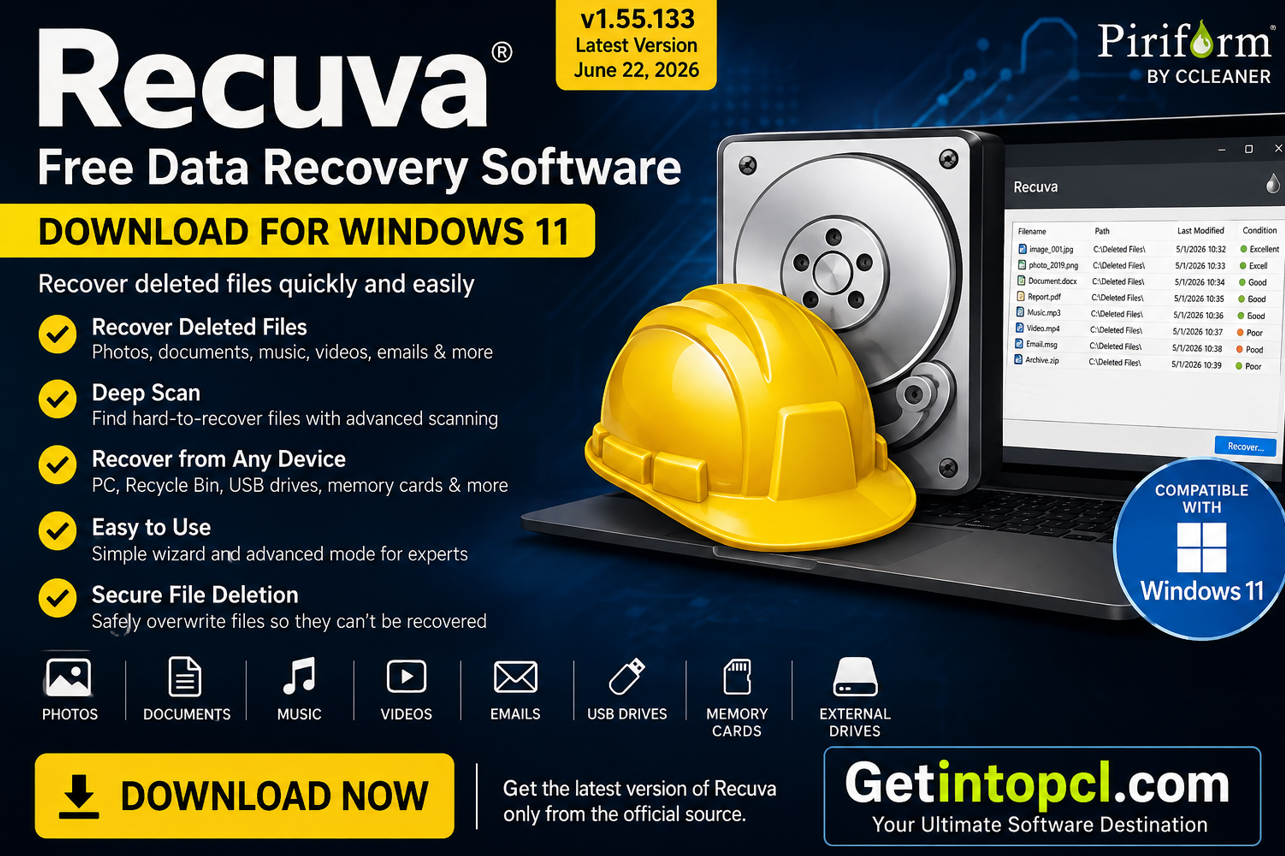
According to the official product information, Recuva can recover:
- Photos and other images
- Documents
- Music and audio
- Videos
- Emails
- Compressed files
- Files from USB drives
- Files from memory cards
- Files from external hard drives
- Files from other supported rewritable media
It can also attempt recovery from damaged or newly formatted drives, although the condition of the storage device can significantly affect the result.
Recuva provides both a guided recovery wizard and an Advanced Mode. The wizard makes the process easier for beginners by allowing users to select the type of file they want to find and the location where it was lost.
Major Uses of Recuva
Recover Accidentally Deleted Files
One of the main reasons people install Recuva is to recover files that were accidentally deleted. If a file has not yet been overwritten by new data, recovery may be possible.
This makes Recuva useful for situations involving accidentally deleted photographs, work documents, school files, videos, music, and other personal data.
Recover Files From the Recycle Bin
Recuva can search for deleted files that are no longer visible in the normal Windows Recycle Bin. The software is specifically designed to search storage areas where deleted files may still exist.
Recover Data From USB Drives and Memory Cards
Recuva can work with removable media, including USB flash drives and camera memory cards. This can be useful for recovering photographs and other files accidentally deleted from removable storage.
Recover Files From Formatted or Damaged Drives
Recuva can also attempt to recover files from damaged or newly formatted drives. Its official documentation provides a specific procedure for scanning damaged or reformatted disks.
However, users should not assume that formatting or physical damage can always be reversed. Recovery success depends heavily on the condition of the storage medium and whether the original data remains available.
Key Features of Recuva
Easy Recovery Wizard
The Recuva Wizard guides users through the recovery process. You can select categories such as pictures, music, documents, videos, compressed files, or emails, or choose to search for all file types.
Deep Scan
Deep Scan is designed for files that are difficult to locate using a standard scan. It examines the drive more thoroughly and can take considerably longer than a normal scan.
The official documentation warns that a Deep Scan can take hours in some situations. It also notes that Deep Scan identifies files by type rather than necessarily recovering their original filenames.
Recovery From Damaged Drives
Recuva includes options for scanning damaged or reformatted disks. This expands its usefulness beyond simple Recycle Bin recovery.
Secure File Deletion
Recuva is not only a recovery tool. It can also securely overwrite selected files so their contents become practically irretrievable.
This feature should be used carefully because files securely overwritten by Recuva cannot normally be recovered afterward. The official documentation also warns against using Recuva’s secure overwrite function on SSDs because it can be ineffective and may damage the drive.
Multiple File Types
Recuva supports a broad selection of common file types, including images, Office documents, audio, video, archives, PDFs, and email files.
Recuva for Windows 11: Compatibility
Recuva is primarily a Windows application.
The official Recuva download page currently lists compatibility with:
- Windows 10
- Windows 8.1
- Windows 7
- Windows Vista
- Windows XP
- 32-bit and 64-bit versions
- Not Windows RT tablet editions
The current official requirements page does not separately list Windows 11, even though the product is being offered and maintained for modern Windows users. Therefore, users searching for Recuva for Windows 11 should download the latest version directly from the official CCleaner/Recuva website rather than relying on an old third-party compatibility claim.
The current release is Recuva 1.55.133, dated June 22, 2026.
Is Recuva Available for macOS?
There is no native Recuva application officially listed for macOS. Recuva’s official product documentation describes it as a Windows recovery application.
Users looking for a Mac data recovery software should therefore look for a recovery application specifically developed for macOS rather than downloading an unofficial “Recuva for Mac” package.
Is Recuva Available for Linux?
Recuva does not have an official native Linux version listed by the developer. Its official product documentation and system requirements are centered on Windows.
Therefore, Linux users should choose a recovery utility that officially supports their Linux distribution and file systems.
Recuva System Requirements
The official Recuva download page provides an operating-system requirement but does not publish a detailed minimum/recommended hardware specification for CPU, RAM, storage, graphics, or internet connectivity. It is better to state that information clearly than to invent requirements.
Officially Published Requirements
- Operating system: Windows 10, Windows 8.1, Windows 7, Windows Vista, and Windows XP
- Architecture: 32-bit and 64-bit Windows versions
- Windows RT: Not supported
- Processor: No official minimum CPU specification published
- RAM: No official minimum or recommended RAM specification published
- Storage: No official minimum free-storage specification published
- Graphics: No dedicated graphics requirement published
- Internet connection: No internet requirement is specified for basic local file recovery
- Additional storage: A separate destination drive is strongly recommended when recovering files so the recovery process does not overwrite data on the source drive.
For practical recovery, the most important consideration is often where you save recovered files. Recuva’s documentation recommends using another drive for recovered data to reduce the risk of overwriting files you are trying to recover.
Is Recuva Free or Paid?
Recuva follows a free + paid Professional model rather than a subscription-only model.
The standard Recuva Free edition provides advanced file recovery without requiring a paid license. The Professional edition adds features such as virtual hard drive support, automatic updates, and priority/premium support.
As of August 2026, the official website lists Recuva Professional at $24.95, although prices and promotions can change. The official upgrade page also states that purchases include a 30-day money-back guarantee.
Recuva Free vs Professional
| Feature | Recuva Free | Recuva Professional |
|---|---|---|
| Advanced file recovery | Yes | Yes |
| Deleted file recovery | Yes | Yes |
| Deep Scan | Yes | Yes |
| Virtual hard drive support | No | Yes |
| Automatic updates | No | Yes |
| Priority/Premium support | No | Yes |
| Price | Free | $24.95 currently listed |
| Intended use | Home use | Home use |
Recuva Free and Professional are officially described as being for home use only. Business users should use the appropriate business edition instead.
Where to Safely Download Recuva
The safest option is to download Recuva directly from the official CCleaner website. This helps reduce the risk of downloading modified installers, bundled software, outdated builds, or potentially unwanted programs.
Official Recuva Download – Free Version
The official download page currently provides the Free and Professional versions and identifies Recuva v1.55.133 as the latest release.
There is also an official Recuva builds page where users can access the standard installer.
For safety, avoid unofficial “cracked,” “pre-activated,” or pirated copies. A file-recovery application needs access to storage devices, so downloading modified software from an unknown website can create unnecessary security and privacy risks.
How to Install Recuva on Windows 11
Installing Recuva is straightforward:
- Visit the official Recuva download page.
- Download the standard installer.
- Open the downloaded installer.
- Approve the Windows security prompt if displayed.
- Follow the installation instructions.
- Launch Recuva.
- Use the Recovery Wizard or Advanced Mode.
- Select the file type and location you want to scan.
- Start the scan.
- Select recoverable files and save them to a different drive whenever possible.
The official installation instructions confirm that users can launch the downloaded installer and follow the installation prompts to complete setup.
Advantages of Recuva
- Free version available
- Simple interface for beginners
- Useful Recovery Wizard
- Supports many common file types
- Can recover from USB drives and memory cards
- Supports external hard drives
- Includes Deep Scan
- Can attempt recovery from damaged or reformatted drives
- Professional version adds automatic updates and priority support
- Official download is easy to access
Limitations of Recuva
- Officially designed for Windows rather than macOS or Linux
- Successful recovery is not guaranteed
- Deleted data can become unrecoverable after being overwritten
- Deep Scan can take a long time
- Deep Scan may not preserve original filenames
- SSD recovery can be considerably more difficult in some circumstances
- The official website does not publish detailed CPU/RAM/storage minimums
- Free and Professional editions are intended for home use
- Secure overwrite should not be used on SSDs according to the official documentation
Who Should Use Recuva?
Recuva is best suited to home Windows users who accidentally deleted files and want to try recovering them without immediately paying for professional recovery software.
It can be particularly useful for:
- Students recovering accidentally deleted assignments
- Home users recovering photographs
- Users who emptied the Recycle Bin accidentally
- People recovering files from USB drives
- Camera users working with memory cards
- Users who accidentally formatted a supported drive
- Anyone looking for a straightforward deleted file recovery tool
However, if the storage device is physically failing or contains extremely important irreplaceable data, repeatedly scanning or writing to the drive may not be the best approach. Professional data-recovery services may be more appropriate in serious cases.
Frequently Asked Questions
Is Recuva completely free?
Recuva has a free edition that provides advanced file recovery. A Professional edition is also available with additional features such as virtual hard drive support, automatic updates, and priority support.
How much does Recuva Professional cost?
The official website currently lists Recuva Professional at $24.95. Promotional pricing can change, so check the official purchase page for the current price before buying.
Is Recuva safe for Windows 11?
The safest way to obtain Recuva is through the official CCleaner/Recuva website. The current official release listed is version 1.55.133, released June 22, 2026.
Can Recuva recover deleted files from Windows 11?
Recuva is designed for Windows file recovery and can search computers, Recycle Bin contents, USB drives, memory cards, and other supported storage devices. Recovery success depends on whether the deleted data has already been overwritten.
Does Recuva work on Mac?
There is no official native Recuva version for macOS listed by the developer. Recuva’s official system requirements and documentation are focused on Windows.
Does Recuva work on Linux?
No official native Linux version is currently listed. Linux users should choose a recovery program specifically designed and supported for Linux.
How much RAM does Recuva require?
The official Recuva system-requirements page does not specify a minimum or recommended RAM amount. Therefore, a specific RAM figure should not be presented as an official requirement.
Where can I download Recuva safely?
The best option is the official Recuva download page from CCleaner. Avoid pirated, cracked, modified, or unauthorized installers.
Conclusion
Recuva remains a useful option for Windows users who need free data recovery software for accidentally deleted files. Its free edition, Recovery Wizard, Deep Scan, support for removable media, and ability to attempt recovery from damaged or formatted drives make it a practical choice for many everyday recovery situations.
If you need a trusted Recuva Windows 11 download, always choose a legitimate installer and avoid unofficial or pirated versions. If you are looking for required software and useful PC products, you can also explore the available downloads and software resources at Getintopcl.com.