
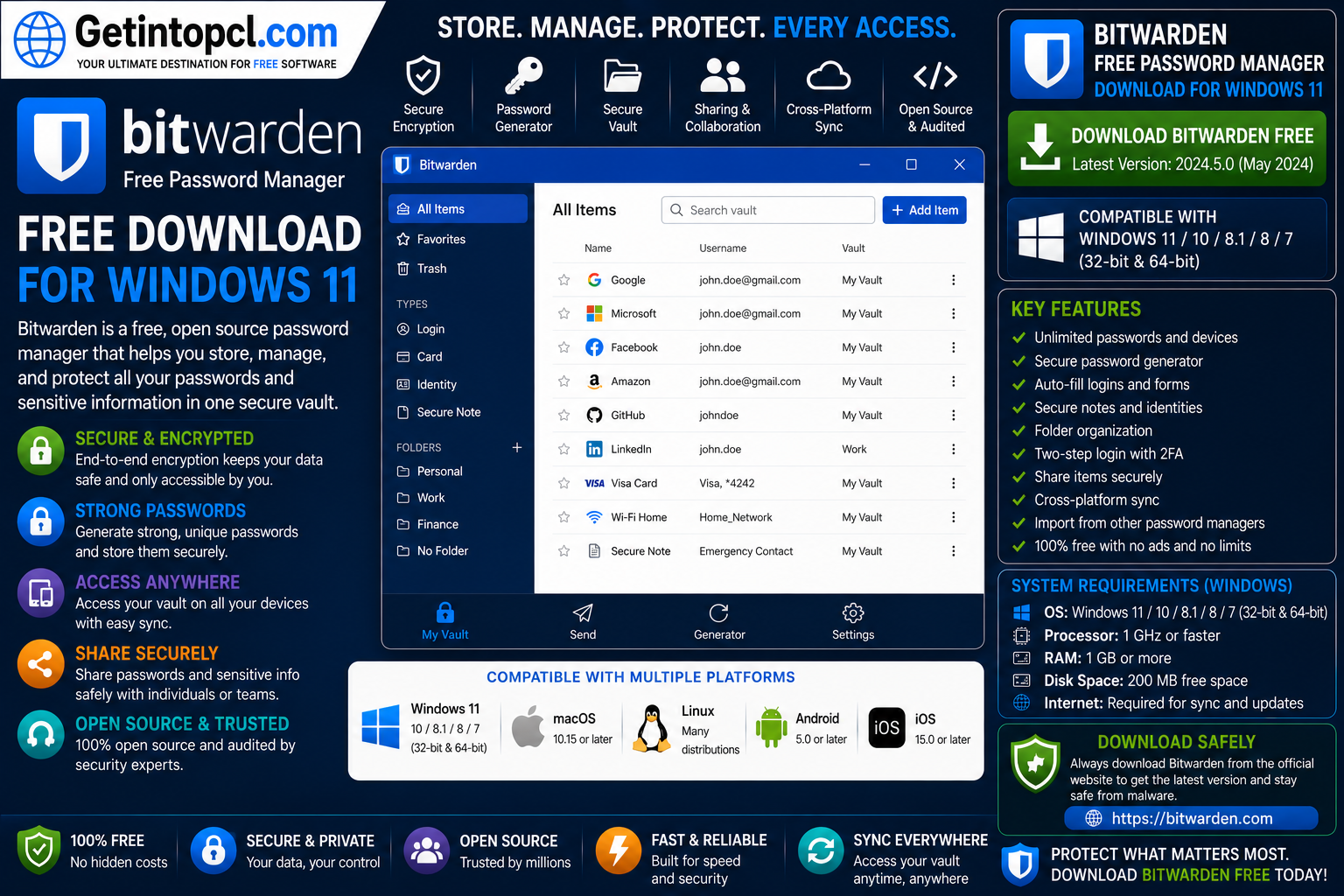
Bitwarden Free Password Manager Download for Windows 11 provides users with a secure way to create, store, manage, and autofill passwords across computers, browsers, and mobile devices. Bitwarden is developed by Bitwarden Inc., a password-security company headquartered in Santa Barbara, California. The company offers personal and business password-management products, with a free individual plan designed to provide core password-management features without a subscription.
Bitwarden is an open-source password manager that uses a zero-knowledge security model. Users can store passwords, secure notes, cards, identities, passkeys, and other information in an encrypted vault. The service can synchronize encrypted vault data between supported devices, while the desktop application also keeps encrypted data locally for offline access.
For Windows 11 users, Bitwarden provides a native desktop application with support for Windows 11 on x86, x64, and ARM64. Users can install the standard Windows application, download a portable version, obtain the application through the Windows Store, or use other supported distribution methods.
Bitwarden is suitable for individuals, students, professionals, families, and businesses that need to manage multiple passwords securely. The free version is particularly attractive because it supports unlimited passwords and devices, password generation, autofill, passkey management, and other core features without requiring a paid subscription.
What Is Bitwarden Password Manager?
Bitwarden is a password-management application designed to help users avoid remembering dozens of individual passwords. Instead of using the same password across multiple websites, users can create unique credentials and store them securely inside their Bitwarden vault.
The service supports passwords, secure notes, payment cards, identities, passkeys, and other vault information. Users can access their information through desktop applications, browser extensions, mobile applications, and the Bitwarden web application.
A major advantage of the Bitwarden password manager Windows 11 application is synchronization across devices. A user can create or update a password on one supported device and access the synchronized vault on another device after authentication.
Bitwarden also offers a self-hosting option for users and organizations that want to operate their own Bitwarden server infrastructure rather than relying exclusively on Bitwarden’s hosted service.
Everything Search Free Download for Windows 11 – Version 2026
Major Uses of Bitwarden
Bitwarden can perform several important password-management tasks.
Password storage: Users can store website usernames and passwords inside an encrypted vault.
Password generation: The built-in password generator can create strong passwords instead of requiring users to invent them manually.
Automatic filling: Bitwarden can autofill stored credentials on supported websites and applications, reducing the need to manually copy usernames and passwords.
Passkey management: Bitwarden supports storing and managing passkeys, allowing users to use modern passwordless authentication methods where supported.
Secure notes: Users can store sensitive text and other information inside the vault.
Identity management: Bitwarden can store identity information for easier form filling.
Payment card storage: Users can securely store card information in their vault.
Cross-device synchronization: Bitwarden allows users to access their vault across supported desktop, browser, and mobile applications.
Secure sharing: Bitwarden provides organization-based sharing options, including a free organization for sharing vault information with one other user. Paid Families, Teams, and Enterprise organizations provide broader sharing capabilities.
Mozilla Thunderbird Free Download for Windows 11 – Version 2026
Key Features of Bitwarden
Bitwarden includes a comprehensive collection of password-management and security features.
- Encrypted password vault
- Unlimited passwords in the free individual plan
- Unlimited devices
- Password generator
- Password autofill
- Passkey management
- Secure notes
- Identity storage
- Payment-card storage
- Cross-device synchronization
- Browser extensions
- Windows desktop application
- macOS desktop application
- Linux desktop application
- Mobile applications
- Web vault
- Portable Windows application
- Two-step login
- Hardware security-key support
- Self-hosting option
- Open-source foundation
- Zero-knowledge architecture
- Encrypted exports
- Bitwarden Send
- Optional premium security features
One particularly useful feature for Windows 11 users is Windows Hello integration. Bitwarden’s desktop documentation explains that users can configure biometric unlocking using Windows Hello PIN, facial recognition, or compatible hardware.
Bitwarden also supports multiple logged-in accounts within the desktop application, allowing users to switch between accounts when appropriate.
Bitwarden Password Manager Windows 11 Compatibility
Bitwarden officially provides a Windows desktop application for Windows 11, with support for x86, x64, and ARM64 architectures. This means it can be used on traditional Intel and AMD Windows 11 computers as well as compatible ARM64 devices.
The official download page provides several Windows distribution options:
- Standard installer
- Portable application
- Windows Store
- Chocolatey package manager
The portable application is useful when users want to run Bitwarden from removable storage or on systems where they do not want to perform a conventional installation. However, the portable version does not automatically update.
The standard installer is the most straightforward option for most Windows 11 users. Users should keep their Bitwarden application updated to receive security fixes, improvements, and new features.
Bitwarden can also be used through supported browser extensions, allowing users to access their password vault directly while browsing the web.
Bitwarden for Mac
Bitwarden is also available as a native desktop application for macOS. The official download page lists macOS alongside Windows and Linux desktop applications.
Mac users can access Bitwarden through its desktop application, browser extensions, web application, and mobile ecosystem. Bitwarden also stores encrypted application data locally on macOS.
Users should download the Mac-specific version rather than attempting to install the Windows application on macOS.
The exact macOS compatibility can vary according to the distribution method and current application release, so users should consult Bitwarden’s current official download page when selecting the appropriate Mac package.
Bitwarden for Linux
Bitwarden also provides a Linux desktop application. The official download page lists Linux as one of the supported desktop platforms.
Linux users can access Bitwarden through supported desktop distribution methods, and the project also provides a Flatpak package. Bitwarden’s CLI is separately available for Linux and can be installed through native packages, npm, Snap, or Flatpak.
This makes Bitwarden useful for users who work across Windows 11, macOS, and Linux computers while wanting a consistent password-management system.
It is important to distinguish the Linux desktop client from Bitwarden’s self-hosted server. The self-hosted server has substantially higher hardware requirements because it runs the Bitwarden server stack, whereas ordinary users installing the desktop password manager do not need to deploy their own server.
Bitwarden System Requirements
Bitwarden’s current official download documentation confirms Windows 11 desktop support for x86, x64, and ARM64 systems. However, Bitwarden does not publish a fixed minimum RAM, processor, storage, or graphics requirement for the standard Windows desktop client on its current download page. Therefore, unsupported or invented specifications should not be presented as official minimum requirements.
Officially documented Windows considerations:
- Operating system: Windows 11.
- Architecture: x86, x64, and ARM64.
- Processor: No specific minimum CPU model or clock speed is published for the Windows desktop client.
- RAM: No specific minimum RAM requirement is published for the Windows desktop client.
- Storage: No specific minimum storage requirement is published for the Windows desktop client.
- Graphics: No dedicated graphics-card requirement is published.
- Internet connection: Required for initial account access and cloud synchronization; an unlocked Bitwarden application can be used offline in read-only mode.
- Windows distribution: Standard installer, portable application, Windows Store, and Chocolatey options are available.
Bitwarden explains that an unlocked application can operate offline in read-only mode. Users cannot make changes, add vault items, attachments, or sends while offline, but existing vault information remains accessible.
Recommended Requirements
Bitwarden does not publish separate recommended CPU, RAM, graphics, or storage specifications for its Windows desktop client.
A normal Windows 11 computer that meets Microsoft’s own requirements should generally provide an appropriate environment for a lightweight password-management application. However, this is a practical assessment rather than an official Bitwarden hardware recommendation.
It is also important not to confuse the requirements of the Bitwarden desktop application with the requirements for running a self-hosted Bitwarden server. The self-hosted server has significantly higher requirements, including at least 2 GB RAM and 12 GB storage according to Bitwarden’s current server documentation.
Is Bitwarden Free or Paid?
Bitwarden uses a freemium and subscription-based model for personal users.
The individual Free plan is always free and provides core password-management features, including unlimited passwords, unlimited devices, password generation, autofill, passkey management, encrypted synchronization, and other basic capabilities.
Bitwarden Premium is an optional paid subscription. The current official pricing page lists Premium at $1.65 per month when billed annually, or $19.80 per year, before taxes.
Premium adds features such as the integrated authenticator, encrypted file attachments, vault health reports, emergency access, secure file sharing, and priority support.
Bitwarden also offers a Families plan at $3.99 per month when billed annually, covering up to six users.
Bitwarden Free vs Premium
| Feature | Bitwarden Free | Bitwarden Premium |
|---|---|---|
| Password storage | Unlimited | Unlimited |
| Devices | Unlimited | Unlimited |
| Password generator | Yes | Yes |
| Autofill | Yes | Yes |
| Passkey management | Yes | Yes |
| Two-step login | Yes | Yes |
| Encrypted synchronization | Yes | Yes |
| Integrated authenticator | No | Yes |
| Vault health reports | No | Yes |
| Emergency access | No | Yes |
| Encrypted file attachments | No | 5 GB |
| Secure file sharing | Limited | Yes |
| Priority support | No | Yes |
| Subscription | Free | $19.80/year currently |
The free version is therefore capable enough for many individual users. Premium is mainly intended for users who want additional security-management and storage features.
Windows 10 Pro x64 ISO incl Office 2016 Free Download – Updated April 2026
Bitwarden Security Features
Security is one of Bitwarden’s central features.
Zero-knowledge architecture: Bitwarden describes its password manager as a zero-knowledge system. The user’s vault data is encrypted so that only the user can decrypt it.
Encrypted vault: Passwords and other sensitive information are stored in encrypted form.
Open-source foundation: Bitwarden maintains an open-source foundation, allowing its code and security approach to receive public review and community scrutiny.
Two-step login: Users can add another authentication factor to help protect their accounts.
Hardware security keys: Bitwarden supports hardware security keys, with the free plan supporting up to five and Premium supporting up to ten according to the current plan comparison.
Passkey support: Bitwarden can store and manage passkeys as an alternative to traditional passwords.
Encrypted local data: Bitwarden states that data stored locally on a device is encrypted and decrypted only when the vault is unlocked.
No password manager can eliminate every security risk. Users should still protect their master password, enable appropriate account security features, keep applications updated, and avoid installing suspicious browser extensions or software.
Advantages of Bitwarden
Generous free version: The free individual plan includes unlimited passwords and unlimited devices.
Cross-platform support: Bitwarden provides desktop applications for Windows, macOS, and Linux, along with browser and mobile applications.
Affordable Premium plan: At the current annual price, Premium is relatively inexpensive compared with many subscription-based password managers.
Strong security model: Zero-knowledge encryption, two-step authentication, hardware-key support, and encrypted vault storage provide multiple layers of protection.
Password generator: Users can easily create stronger and more unique credentials.
Passkey support: Bitwarden supports modern passwordless authentication.
Portable Windows version: Users can run Bitwarden from a portable Windows executable when appropriate.
Self-hosting option: Advanced users and organizations can operate their own Bitwarden server infrastructure.
Limitations of Bitwarden
Some advanced features require Premium: Integrated TOTP authentication, encrypted file attachments, vault health reports, emergency access, and priority support are premium features.
Internet connection for synchronization: Although unlocked vaults can be used offline in read-only mode, users need connectivity to synchronize changes with the Bitwarden service.
Master password responsibility: If users forget their master password, account recovery can be difficult because of Bitwarden’s security model.
Some users may prefer simpler software: New password-manager users may need time to understand vaults, organizations, two-step authentication, and security settings.
Self-hosting requires technical knowledge: Running the Bitwarden server yourself requires substantially more configuration and maintenance than simply using the hosted service.
Who Should Use Bitwarden?
Bitwarden is suitable for a wide range of users who want to manage passwords securely across multiple devices.
It can be particularly useful for:
- Windows 11 home users
- Students
- Freelancers
- Remote workers
- Professionals
- Families
- Privacy-conscious users
- Users with many online accounts
- People who reuse passwords and want to improve security
- Users who need password synchronization across devices
- Users looking for a free password manager for Windows 11
- Advanced users interested in self-hosting
The free plan is particularly appropriate for individual users who mainly need password storage, password generation, autofill, and synchronization. Premium becomes more attractive when users need vault health reports, TOTP authentication, emergency access, encrypted file storage, and other advanced features.
Where to Safely Download Bitwarden
The safest place to download Bitwarden is the official Bitwarden website. The official download page provides the Windows desktop application, including the standard installer and portable version, as well as Windows Store and Chocolatey distribution options.
For a normal Windows 11 computer, the standard installer is the recommended choice for most users. Users who need a portable application can choose the portable Windows version, but it does not automatically update.
Because password managers handle highly sensitive information, users should avoid cracked versions, modified installers, unofficial repacks, suspicious activation tools, and unknown third-party download sites.
Getintopcl.com can provide software information, feature comparisons, compatibility details, and installation guidance. However, users should obtain the actual Bitwarden application from the official Bitwarden download source.
Official Bitwarden Download: Download Now
How to Install Bitwarden on Windows 11
Installing Bitwarden on Windows 11 is straightforward.
- Visit the official Bitwarden download page.
- Select the Windows desktop application.
- Download the standard installer.
- Open the downloaded installer.
- Approve the Windows security prompt if necessary.
- Follow the installation wizard.
- Launch Bitwarden after installation.
- Create a Bitwarden account or sign in to an existing account.
- Set a strong master password.
- Configure two-step login for additional protection.
- Install the Bitwarden browser extension for your preferred browser.
- Import existing passwords if necessary.
- Create or generate strong, unique passwords for your accounts.
Bitwarden also provides a portable Windows application for users who prefer not to perform a conventional installation. The portable application can be particularly useful on temporary or offline systems, although users should remember that the portable version does not automatically update.
Frequently Asked Questions
Is Bitwarden Free?
Yes. Bitwarden offers an always-free individual plan with core password-management features, unlimited passwords, and unlimited devices.
Does Bitwarden work on Windows 11?
Yes. Bitwarden officially provides a Windows 11 desktop application with x86, x64, and ARM64 support.
How much RAM does Bitwarden require?
Bitwarden does not currently publish a specific minimum RAM requirement for its Windows desktop application. The published Windows download information identifies supported operating systems and architectures rather than a fixed RAM minimum.
How much storage space does Bitwarden need?
Bitwarden does not publish a specific minimum storage requirement for the Windows desktop client. The application stores encrypted local data, but the official desktop requirements do not specify a fixed minimum disk-space figure.
Can I use Bitwarden on Mac?
Yes. Bitwarden provides a native macOS desktop application, as well as browser extensions and other clients.
Does Bitwarden work on Linux?
Yes. Bitwarden provides a Linux desktop application and also supports Linux through distribution methods such as Flatpak. Its CLI is also available for Linux.
What is included in Bitwarden Premium?
Premium adds features including integrated TOTP authentication, encrypted file attachments, vault health reports, emergency access, secure file sharing, and priority support. The current official price is $1.65 per month when billed annually, or $19.80 per year before taxes.
Where can I safely download Bitwarden?
The safest option is the official Bitwarden website. Its download page provides the Windows installer, portable application, Windows Store option, and other official distribution methods.
Conclusion
Bitwarden is an excellent choice for users who want a secure, feature-rich, and affordable password manager for Windows 11. Its free plan provides unlimited passwords and devices, password generation, autofill, passkey management, synchronization, and other essential features without requiring a subscription.
The Premium plan adds advanced features such as integrated authentication codes, encrypted file attachments, vault health reports, and emergency access. Bitwarden also supports Windows, macOS, Linux, browser extensions, mobile devices, and optional self-hosting, making it a flexible solution for users who manage accounts across multiple platforms.
If you are looking for Bitwarden Free Password Manager Download for Windows 11, Getintopcl can help you discover useful software, understand its features and requirements, and follow reliable installation guidance. Always download password-management software from a trusted source to reduce the risk of installing modified or malicious software.